

Plugins
Showcase Heroes
The large banner at the top of a page.
Add-on
Showcase Heroes is an add-on, so not every website has it. If it is not in your menu, see Add-ons to add it.
A hero is the big band at the top of a page. A photo, a video or a run of photos behind it, with your headline and your buttons on top.
This screen holds the wording and the pictures. It does not decide which page the hero shows on. That is a block, and it comes later on this page.
Go to Plugins, then Showcase Heroes. It sits in the Site Layout group.
The list
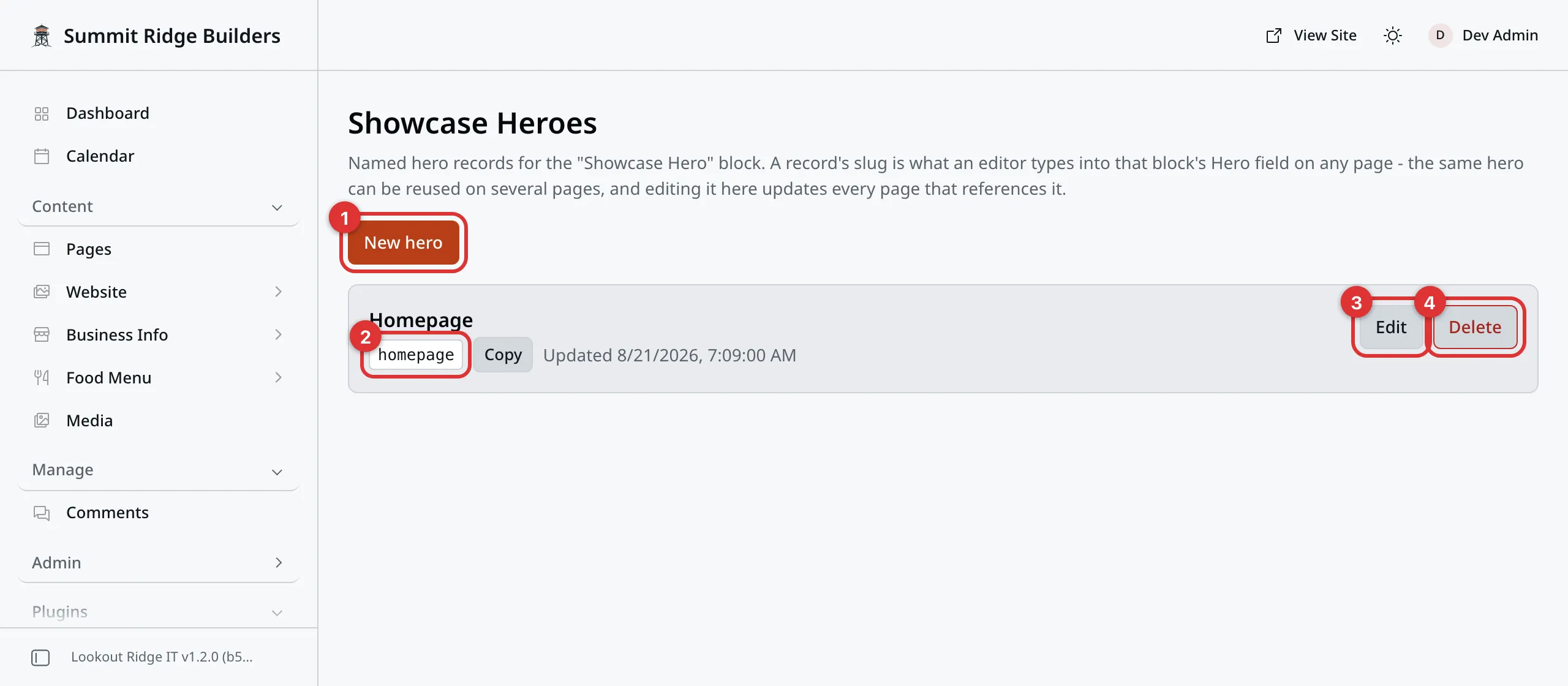
One hero, ready to be pointed at from a page.
1. New hero. Starts a blank one.
2. The slug. The short name in the gray box. A page uses this to ask for this hero. The Copy button next to it puts it on your clipboard.
3. Edit. Opens the hero.
4. Delete. Read the warning at the bottom of this page first.
Making or changing a hero
Click New hero, or Edit on one you already have.
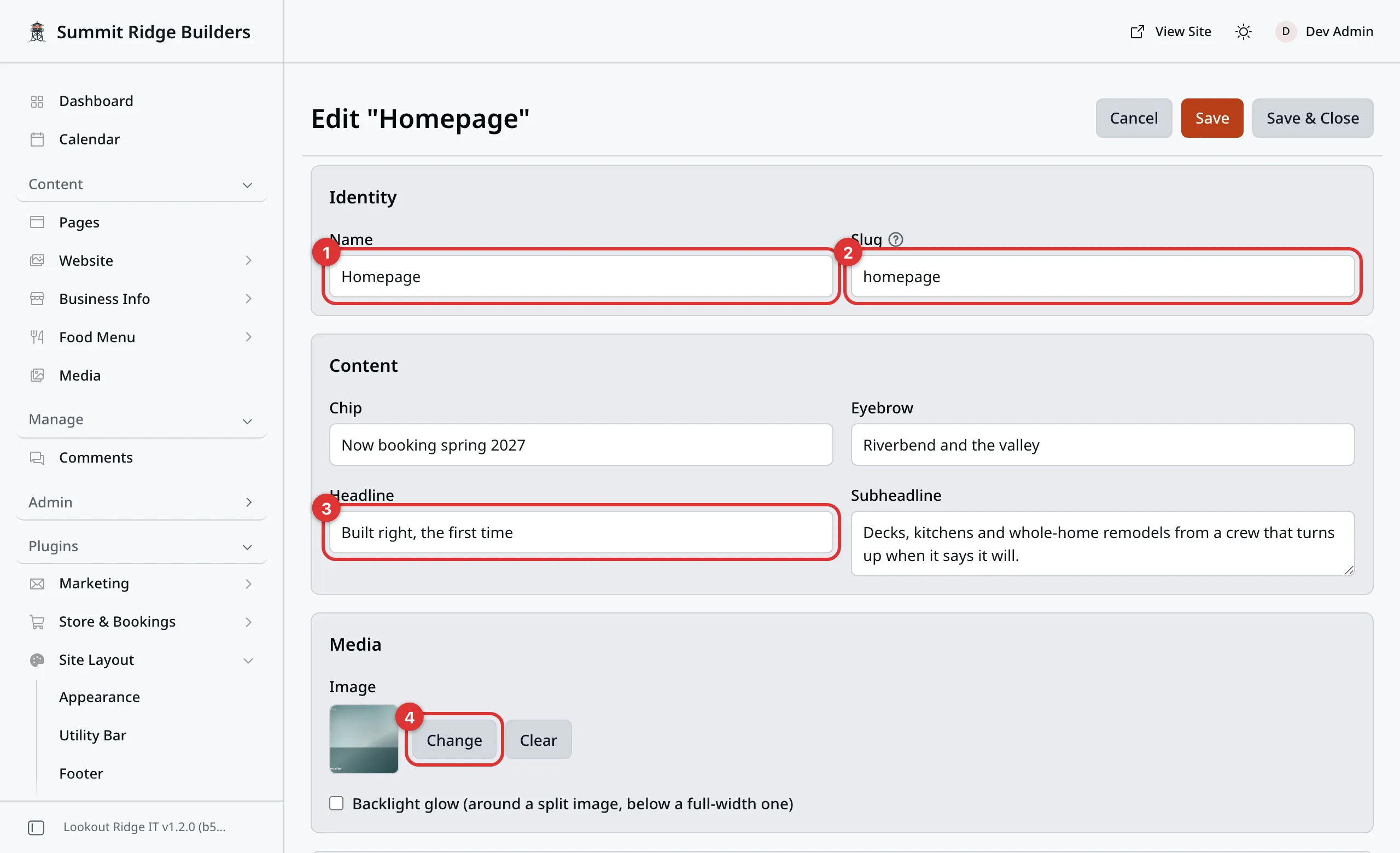
The form is long. Everything on it can be left empty.
On a wide screen the form sits in two columns, so boxes that belong together sit side by side. Read each card left to right, then down.
1. Name. What you call this hero, such as “Homepage”. Only you ever see it.
2. Slug. The short name a page asks for. Leave it empty and it fills itself in from the name.
3. Headline. The big line. This is the one box worth taking your time over.
4. Change. Picks the photo. On a hero with no photo yet, the button reads Choose. Media walks through the picker. Clear takes the photo off again.
Three smaller boxes sit above the headline:
- Chip is a small pill at the very top, such as “Now booking spring 2027”.
- Eyebrow is a short line in capitals above the headline.
- Subheadline is a sentence or two under it.
Warning
There is no draft here. The moment you click Save or Save & Close, your website changes. Anyone on the page sees the new wording.
Every page that uses this hero changes at the same time. Check the list of pages before you rewrite a headline.
The buttons sit at the top right, and stay there as you scroll:
- Save stores your changes and keeps the form open.
- Save & Close stores them and takes you back to the list.
- Cancel leaves without saving.
You get a message reading Hero saved.
Many boxes have a small ? next to the label. Point at it to read what the box does.
Buttons, phone number and trust strip
Scroll down the form for these. All of them can be left empty.
Calls to action holds two buttons. Each one needs both a label and a URL,
or it does not show at all. Primary is the loud one, Secondary the
quiet one. For a page on your own site, start the URL with a slash, like
/quotes.
Primary style and Secondary style pick how each button looks: Solid, Outline or Text, which shows the words only. Leave them on the default and the first button is solid, the second an outline.
Phone number turns into a link that dials. On a phone, one tap and it is ringing. Phone label is what a visitor reads, and it can be anything. Leave it empty and they read the number.
Trust strip is the quiet row under the buttons: “Licensed and insured”, “20 years in the valley”. Click Add item for another line, the arrows to move one, Remove to take one out.
Choosing how it looks
Layout & display is the last part of the form.
Layout is the big choice. Four options:
| Layout | What you get |
|---|---|
| Split (image beside text) | The photo sits next to the words. Quiet, and the safe pick. |
| Background image | The photo fills the band, with the words on top of it. |
| Background video | A video plays behind the words. It has no play button and no sound. |
| Carousel | Up to four photos, one after another. Each can have its own headline and caption. |
Pick a layout with nothing to show and your website quietly uses a simpler one instead. Pick Background video before you have uploaded the video and you get the photo version until you do.
For Background video, the Media card asks for a Video and a Poster image. The poster is the still picture shown before the video plays. Check Autoplay (needs a poster; muted automatically) to make the video play by itself. It only plays when a poster is set, and it never has sound. Leave it unchecked and visitors see the poster, standing still. Loop plays the video again and again.
The three boxes under it only matter for the last three layouts:
- Alignment puts the words in the middle or on the left.
- Overlay strength is how much your website darkens the picture behind the words. Turn it up when the words are hard to read.
- Section height is how tall the band is: Compact, Medium, Tall or Full viewport.
Bottom edge gives the bottom of the band a shape, in the color of your page: Wave, Tilt, Curve, Zigzag, Peaks, Arrow, Torn or Rough. None keeps it a straight line. Like the three boxes above, it only works on the last three layouts.
Pick a shape and two more boxes appear:
- Edge height (px) is how far the shape reaches up into the band. It starts at 60. It shrinks on small screens.
- Edge repeat is how many times the pattern repeats across the width. It starts at 1. A Wave repeated 3 times makes three smaller waves.
These two are sliders. Drag the dot, and the number shows next to the name. Reset puts a slider back where it started. Every slider on the form works this way.
Animate content in on load fades the words in as the page opens. It is off to start with.
The header over a tall hero
On some styles, the header can float over a hero at the very top of a page. The photo then starts at the very top of the screen and shows through the menu. Your style is set on the Appearance page.
- Marketing, Portfolio and Blog: this happens when Section height is Tall or Full viewport. Compact and Medium heroes keep a solid header.
- Community: the floating header always sits on the photo of a hero at the top of the page, whatever its height.
- The other six styles always keep a solid header.
It only happens with the last three layouts, and only when the hero is the first thing on the page.
Pick a photo whose top part is calm, such as sky, so your menu stays easy to read.
Backlight glow
Backlight glow sits in the Media card. Check it and the hero’s own colors glow out past the photo. On a Split hero, a soft copy of the photo glows on every side. On the other layouts, the glow spills out below the band. A Carousel glows in the colors of the slide on screen. A video uses its Poster image, so with no poster there is no glow.
Checking it shows five sliders. All of them can stay where they start:
- Glow blur (px): how soft the glow is.
- Glow saturation (%): how bright its colors are.
- Glow intensity (%): how strong it is.
- Glow height (px): how far it reaches below the hero. Not on Split heroes.
- Edge fade (px): how far the edge of the photo fades into the glow, instead of stopping on a hard line. On a Split hero, all four edges fade. On the others, only the bottom.
It starts unchecked.
Carousel slides
Pick Carousel as the layout and a card called Carousel slides appears.
Click Add slide for each photo. You can have up to four. Each slide has:
- Image. The photo. Choose picks it.
- Slide headline (optional). A small headline shown on this photo only. Your main headline stays as it is.
- Slide caption (optional). A short line under it.
Remove takes a slide out.
Three settings sit above the slides:
- Autoplay moves to the next slide on its own. It is off to start with. Visitors can always swipe or click through by hand. It stops while a visitor points at the hero, and never runs for visitors whose computer is set to cut down motion.
- Show each slide for (seconds) is how long each slide stays. It starts at 5.
- Crossfade duration (ms) is how long one slide takes to fade into the next, in thousandths of a second. It starts at 1000, one second. Slide it to 0 for an instant cut.
Putting a hero on a page
The hero has to be asked for. That is one block on one page.
- Open the page under Content, then Pages.
- Add a Showcase Hero block. Pages shows how.
- Type the hero’s slug into the block’s Hero box.
- Click Publish changes, then Publish changes again in the box that opens. Saving and publishing covers that step.
That is the whole join. The block holds nothing but the slug, so the same hero can sit on two pages and stay one thing.
Get the slug wrong and nothing shows. No error, no empty band, just no hero. Copy it off the list screen rather than typing it.
What it looks like
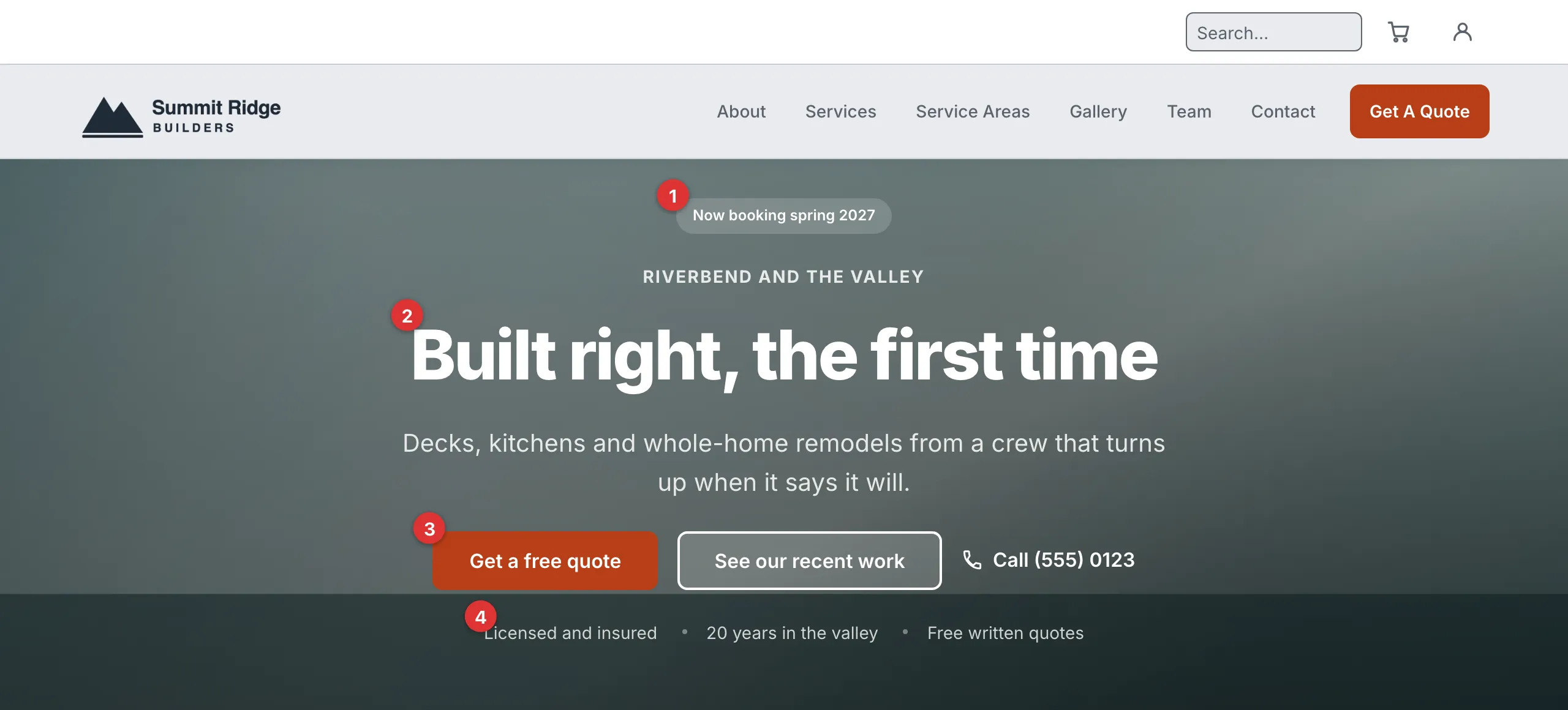
Every mark here is one box on the form.
1. Chip. 2. Headline. 3. Primary button. 4. Trust strip.
The eyebrow sits between the chip and the headline. The subheadline sits under the headline. The phone link sits beside the buttons.
Deleting a hero
Warning
Deleting a hero does not take the block off the pages that use it. Those pages switch to the first hero left on your list, which may not suit them.
Point each of those pages at the hero you want first. Only then delete this one. If you delete your last hero, those pages show no hero at all.
Your browser asks you to confirm. It names the slug that is going away, and the hero those pages will show instead.
Click Delete on the hero’s row, then confirm.
Last updated Oct 20, 2026