

Plugins
Analytics and the cookie banner
Your visitor numbers, the tracking code boxes, and the banner your visitors see.
Analytics is where you see how many people visit your website. It is also where tracking code from Google, Meta and others goes. That code is what makes the cookie banner show up on your website.
Go to Plugins, open the Marketing group, and click Analytics.
The screen has two tabs. Dashboard shows your numbers. Settings holds the tracking code boxes.
The Dashboard tab
This tab is for Editors and Admins. Users explains the roles.
Along the top is a row of buttons for the time span: Last 12 hours, Last 24 hours, Last 3 days, Last 7 days and Month to date. It starts on Last 7 days. Click another one and every number on the tab changes to match. The word Updating… shows while it loads.
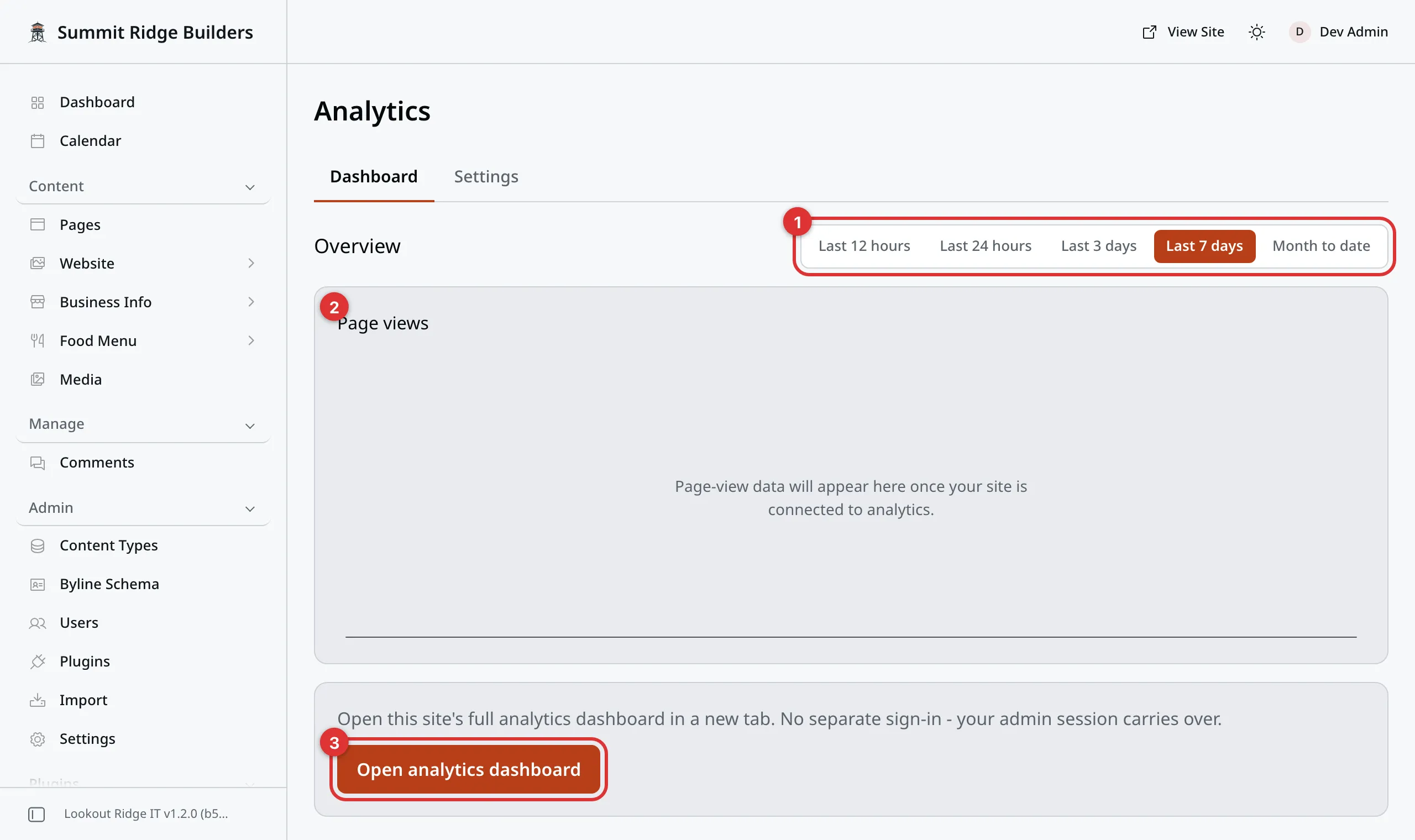
A new website, before any numbers come in. Only the Page views chart shows.
The numbers in the picture:
- The time span buttons.
- The Page views chart. The tiles and the other charts show up once people visit.
- Open analytics dashboard. See The full analytics dashboard.
Under that sit three tiles:
- Visitors is how many different people came.
- Sessions is how many visits they made. One person can visit twice.
- Page views is how many pages they opened in all.
Your own visits are left out. Any browser you use to sign in to this panel is not counted, even after you sign out. So the numbers are your visitors, not you checking your own pages.
Each tile may also show a small arrow and a percent. That compares this time span with the one just before it. An up arrow means more than last time. New means there were none last time.
Below the tiles are the charts:
- Page views is a line that shows the ups and downs over the time span.
- Top pages lists the pages people opened most.
- Top referrers lists the websites that sent people to you, such as a search engine.
- By country shows where your visitors are.
- Bot vs human page views splits real people from robots. Search engines send robots to read your pages. That is normal.
Important
A new website may show only the Page views chart, with a line that says the data will appear once your site is connected. That is normal. The numbers fill in once people start to visit. If it still says that after a week, contact us.
The full analytics dashboard
At the bottom of the tab is Open analytics dashboard. It opens a bigger set of numbers in a new browser tab. You do not have to sign in again.
It also shows what visitors did, not just what they read. Sending a form, joining your email list and booking a time are counted there. It never shows what anyone typed.
If nothing opens, your browser may have stopped the new tab. The screen then says: “Your browser blocked the analytics tab. Allow pop-ups for this site, then try again.” Your browser shows a small icon in the address bar when it stops a pop-up. Click it, choose to allow pop-ups for this site, and click the button again.
If it says “Analytics isn’t set up for this site yet,” there is nothing for you to fix. Contact us and we will set it up.
The Analytics overview card on your Dashboard shows the same tiles. Open dashboard brings you to this tab, and Full analytics opens the bigger set of numbers.
The Settings tab
Only an Admin can use this tab. Anyone else sees a line that says the settings are for administrators.
The tab is a stack of boxes, one per service:
- Lookout Ridge IT | Analytics Service, which is ours. It is always first.
- Google Analytics
- Google Ads
- Meta Pixel
- TikTok Pixel
- Microsoft Clarity
Each of the last five has a switch beside its name, and a box for its code. A screen reader reads each switch out by name, such as Enable Google Analytics. All five switches start off.
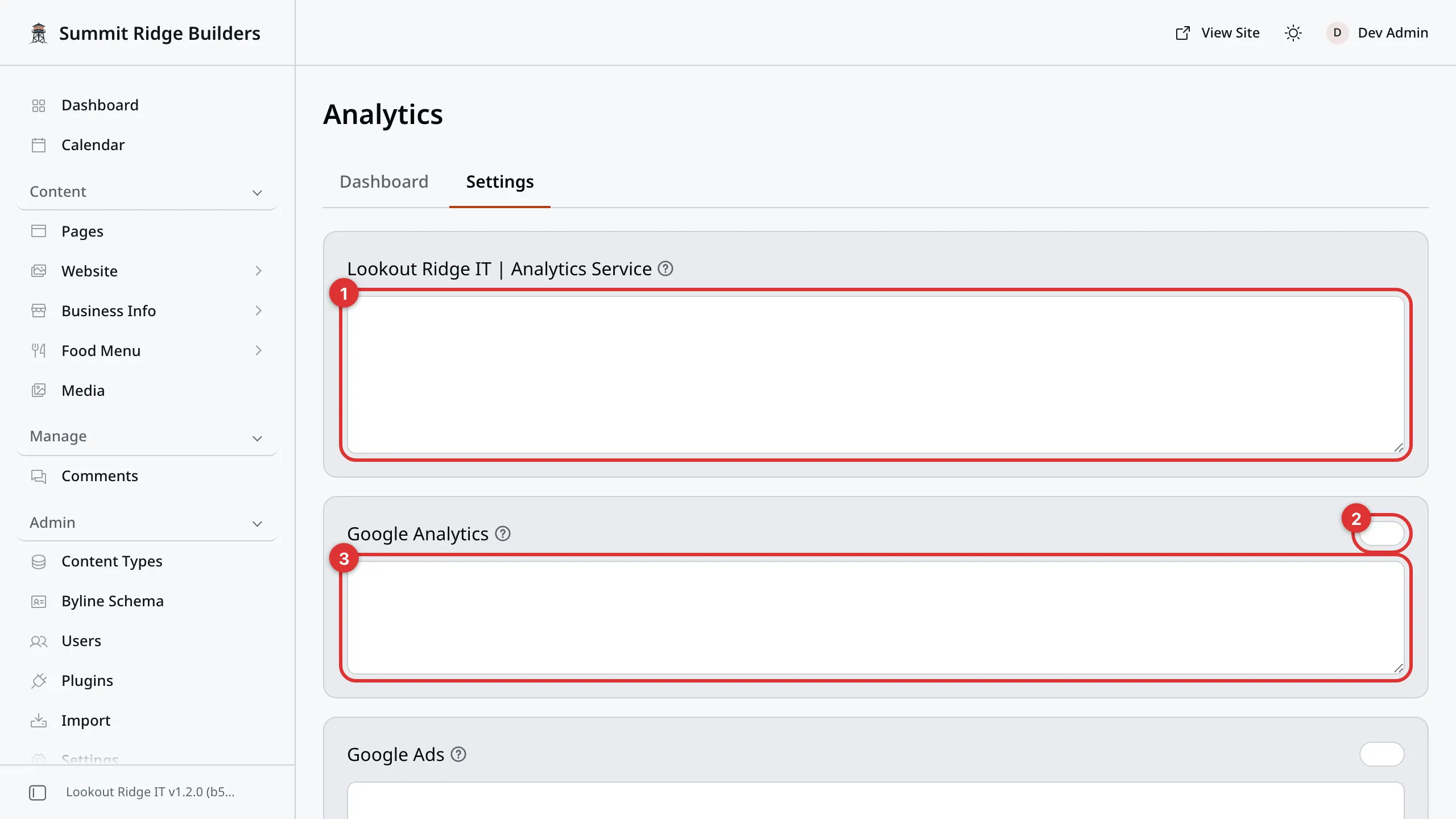
The first two boxes. The other services sit below, each with its own switch.
The numbers in the picture:
- Our box. It has no switch.
- The switch for Google Analytics.
- The box for its code.
Our box
Warning
Lookout Ridge IT | Analytics Service is only for a snippet we give you.
Code from Google Analytics, Google Ads, Meta, TikTok, Microsoft Clarity or PostHog never runs from this box. If the box holds any of it, nothing pasted in the box runs at all. It still saves, there is no error message, and your website looks fine.
The only sign is in that company’s own reports. They show no visits from your website.
The first five belong in their own boxes below, where the cookie banner covers them. PostHog has no box of its own, so it cannot be added here.
That box has no switch. It is on whenever there is something in it. To turn it off, clear the box and click Save.
Our own service counts visits without cookies. That is why it runs for every visitor, banner or no banner.
None of the five services below ever loads on checkout or account pages. Those pages take payments and sign-ins, so they stay free of outside tracking code.
Adding a service
First get the code from the company that runs the service. Each one calls it a snippet, a tag, or a pixel. It is a block of text you copy.
| Service | Where the code lives |
|---|---|
| Google Analytics | Admin, then Data streams, then Installation instructions |
| Google Ads | The Google tag setup screen |
| Meta Pixel | Events Manager, then your pixel, then the setup steps |
| TikTok Pixel | Events Manager, then your pixel, then the setup steps |
| Microsoft Clarity | Settings, then Setup |
These screens change from time to time. If yours does not match, follow the install steps the company itself gives you.
Warning
There is no Publish step here. The moment you click Save, your live website changes.
Turning on your first switch also puts the cookie banner in front of every visitor. Read the cookie banner part first, so you know what they will see.
- Copy the whole block of code. Take all of it, exactly as it comes.
- Paste it in the box under that service’s name.
- Click the switch beside the name, so it turns on.
- Click Save, at the bottom of the tab.
The words Settings saved show beside the button. That is how you know it worked.
Turning a service off
Click its switch off, then click Save. Nothing is sent to that company any more.
Your pasted code stays in its box. It is waiting for next time. Switch it back on later and it works again, with nothing to paste.
The cookie banner
The banner is a bar on your website with a short line and two buttons. There is nothing to set up. It appears on its own when it is needed.
It shows only for a visitor who has not chosen yet. It also needs one of these to be true:
- one of the five switches is on, with code in its box, or
- the page holds a map, such as a Map block, or a Social Post, or
- the visitor came in on a referral link to your shop. The bar then adds a line saying it can remember that link for 30 days.
The banner can also appear when Lookout Ridge IT turns on diagnostics for your website.
A visitor who has already chosen never sees it again.
The bar reads: “This site can load content and analytics from third parties that use cookies.” Next to that is a link to your Cookie Policy.
Accept turns the tracking on for that visitor. The page reloads, and their choice is remembered for a year.
Decline makes the bar go away. No tracking code is loaded at all. A map or a social post stays as a plain box with a button to load it. That button still works, and it changes nothing else.
A visitor who never chooses is treated the same as one who declined. Nothing is tracked until somebody clicks Accept. Our own service is the one exception. It uses no cookies, so it counts every visit.
Important
You cannot change the words on the banner, and you cannot switch it off. Turn your five switches off and take the maps and social posts off your pages, and it stops appearing for those reasons.
Last updated Oct 20, 2026