

Manage
Redirects
Pointing old addresses at new pages.
A redirect is a signpost. It sits at an old web address and sends anyone who lands there to a new one.
Visitors do not see it happen. They click the old link and the new page opens.
Most redirects make themselves
You often do not need to make one at all.
When you rename a page. Change the slug or the parent of a published page, service, post or other entry, and publish. Your website puts up a signpost from the old address to the new one by itself. Old links and bookmarks keep working.
When a visitor hits a dead end. The SEO page has a Broken links tab. It lists the addresses visitors tried that do not exist, and fixes one with a click. That is the easiest place to make a redirect by hand.
When you move from WordPress. The SEO page can read your old WordPress export and add a redirect for every old post address. The SEO page explains it.
When you need one by hand
Two cases are left:
A printed address is wrong. Flyers, van signs, a card you handed out for two years. You cannot reprint them, but you can make the address work.
You removed a page. The page is gone, but the links to it are not. Send those visitors to the nearest thing you still offer.
Where to find the Redirects screen
The Redirects screen is not in your menu. Only an Admin can open it.
- Open your website in your browser.
- Add
/_emdash/admin/redirectsto the end of its address, such asyoursite.com/_emdash/admin/redirects. - Press Enter.
Tip
Bookmark it once you are there. That is Cmd+D on a Mac, or Ctrl+D on Windows.
The Redirects screen
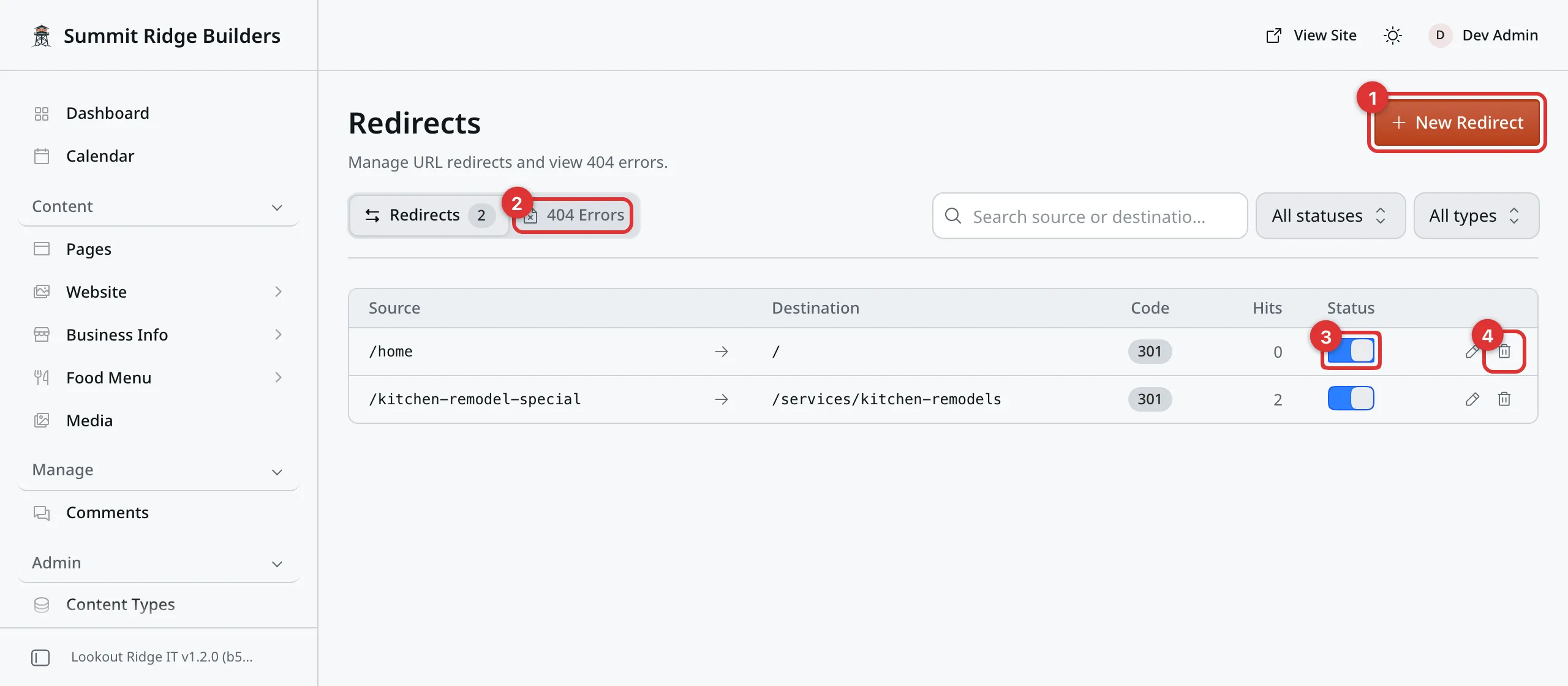
Each row is one redirect. Source on the left, destination on the right.
1. New Redirect. Makes a new signpost.
2. 404 Errors. A list of addresses visitors tried that do not exist. Covered further down.
3. The switch. Turns this redirect off without deleting it. Gray means off, and the old address stops working again.
4. The trash icon. Deletes the redirect for good. Read the warning further down first.
The pencil beside the trash icon opens the redirect so you can change either address.
Code is the kind of signpost. Hits counts how many people it has sent on so far.
The signposts your website made for you are in this list too. They are marked as automatic. Leave them be.
Adding a redirect
Click New Redirect.
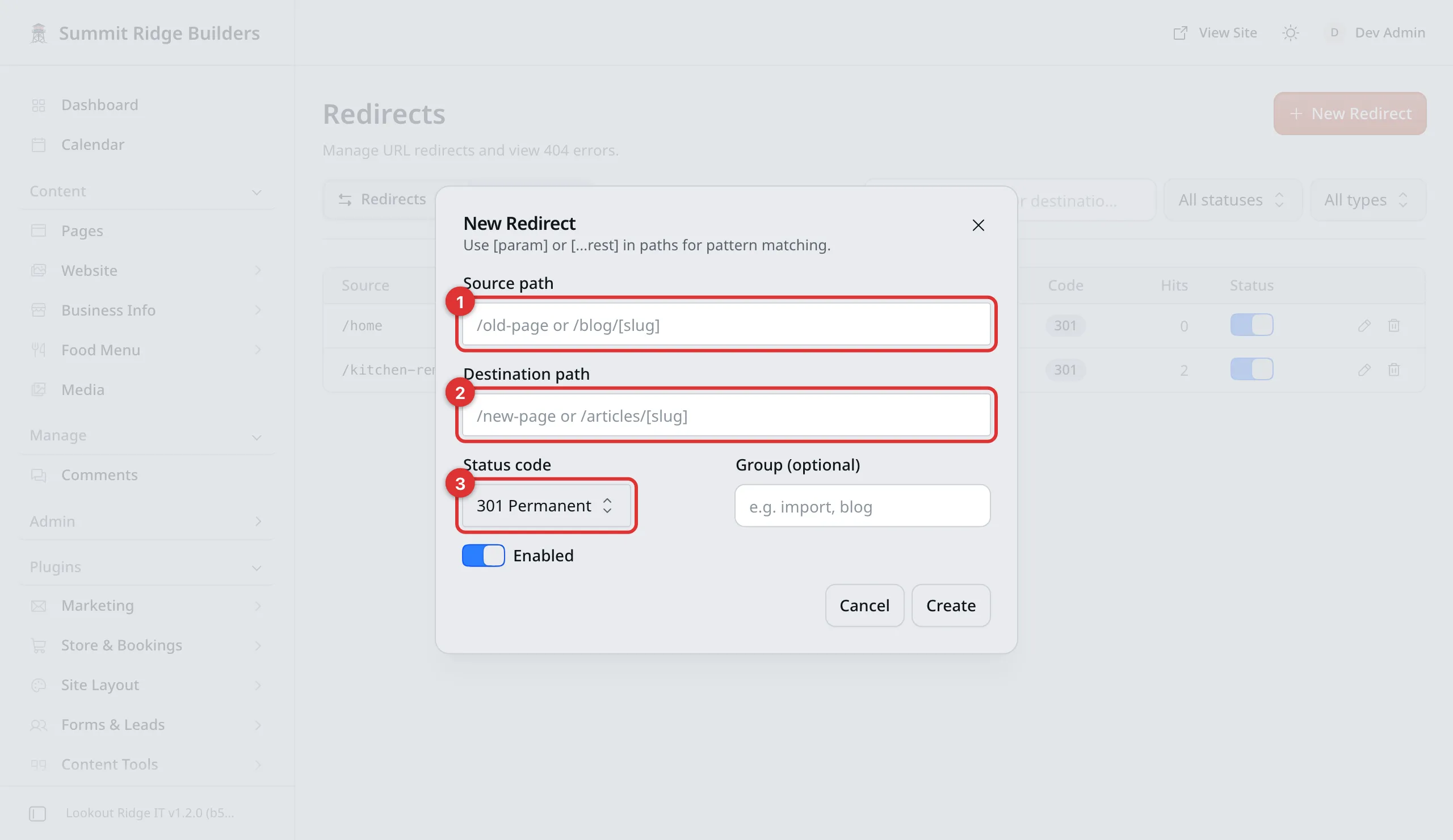
Old address on top, new address below.
1. Source path. The old address, the one that no longer works. Type
everything after your website’s name, starting with a slash:
/kitchen-remodel-special.
2. Destination path. The new address, the one that does work:
/services/kitchen-remodels.
3. Status code. Leave it on 301 Permanent. That tells search engines the page has moved for good, and they update their records. Use 302 Temporary only if the old address is coming back. Leave the other choices alone.
Enabled is on already. Leave it on. Group (optional) is a label for your own filing, and can be left empty.
Warning
Check the destination before you click Create. Nothing here tests it.
Point a redirect at an address that does not exist and every visitor lands on a “page not found” screen. That is worse than the dead link you were fixing, because now it looks deliberate.
Type the destination into your browser first and make sure the right page opens.
Warning
Never use a page that still works as the Source path.
A redirect beats the page. Put /pricing in the source box and your pricing
page stops opening for anybody: they get sent away instead. The page is not
deleted, and nothing on the page looks wrong. It is simply unreachable until
you delete the redirect.
Source is always the address that is already broken.
Click Create. The signpost is up right away.
Checking it worked
Open a new browser tab. Type your website’s name, then the old address, and press Enter.
The new page should open. Look at the address bar: it now shows the new address, not the one you typed. That is the redirect doing its job.
Come back to this screen and the Hits number for that row has gone up by one. That is you.
Changing or removing one
Click the pencil on the row, change either address, and click Save.
To take a redirect down for a while, click the switch on its row. It turns gray and the old address stops working. Click it again to turn it back on.
Warning
The trash icon deletes the redirect for good, and the old address stops working at once. Anyone with that link, or a search result pointing at it, lands on nothing again.
If you are not sure, use the switch instead. A turned-off redirect costs you nothing and can be turned back on in a second.
Loops are blocked for you
A redirect that points at itself, or two that point at each other, would trap a visitor going round in circles.
The panel will not let you make one. Try it and you get a message saying the redirect would create a loop, and nothing is saved. You cannot break your website this way.
The 404 Errors list
Click the 404 Errors tab. This is every address a visitor has tried that does not exist on your website.
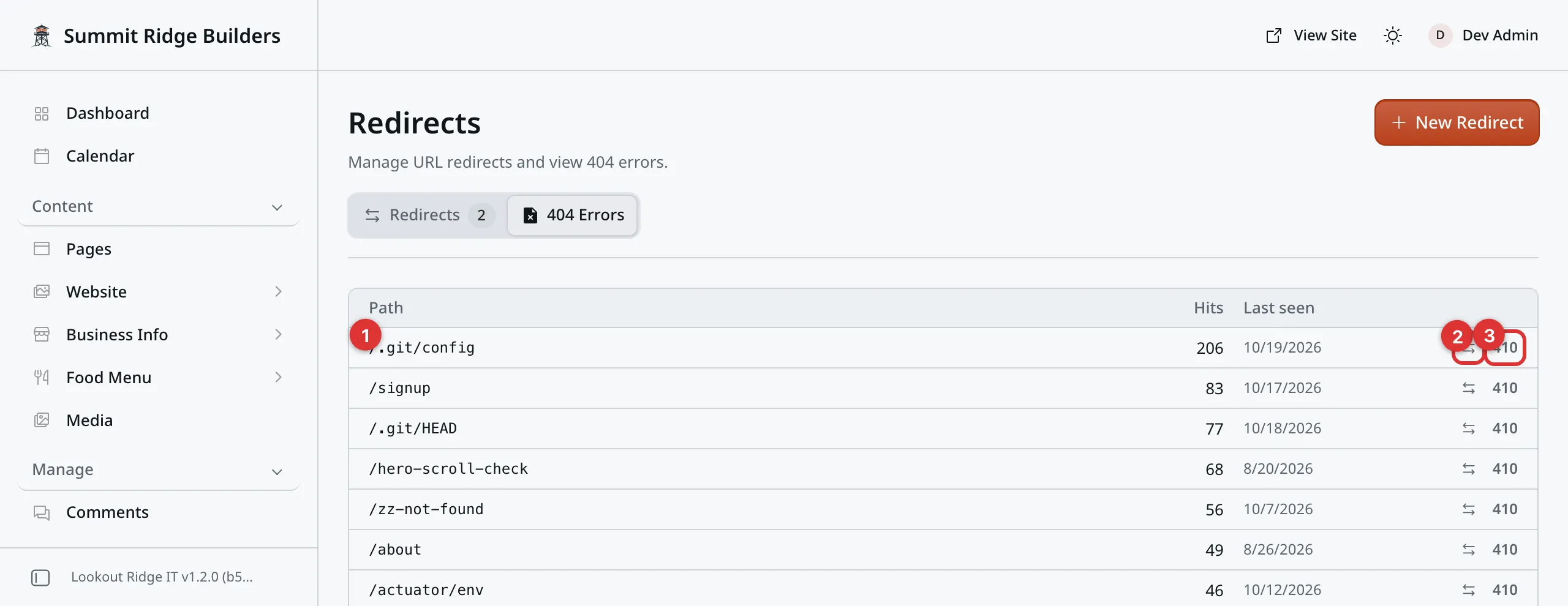
Busiest first. A high number means a lot of people are hitting a dead end.
1. The path. The address they tried.
2. The arrow button. Starts a new redirect with this address already filled in as the source. You only have to type the destination.
3. The 410 button. Marks the address as gone for good, so search engines stop asking for it. Leave this alone unless we tell you otherwise.
Most rows are robots poking around, and you can ignore them. The ones worth your time are addresses that look like real pages of yours, with a high count and a recent date. Those are customers who cannot find you.
Tip
The Broken links tab on the SEO page shows this same list with more help. It hides the robots, shows which page sent each visitor, and fixes a row in one step.
When something goes wrong
Contact support
Contact us if:
- a page of yours has stopped opening and you are not sure why
- you need a redirect that covers a whole group of addresses at once
- the 404 list is full of addresses you recognize
Tell us the addresses involved. A redirect is quick to fix and quick to undo.
Email support@lookoutridgeit.com. Getting support says what to put in the message.
Last updated Oct 20, 2026