

Plugins
Landing Pages
Quick pages for an ad, a flyer or a QR code, each with one job.
Every website has this screen. Only an Admin user can open it.
A landing page is a page with one job. You point an ad, a flyer, a QR code or an email at it. It says one thing and asks for one thing, such as a quote request.
Each landing page lives at its own address that starts with /lp/. A page
with the slug spring-sale lives at /lp/spring-sale on your website.
Go to Plugins, open the Marketing group, and click Landing Pages.
Landing pages are not in your menus, and nothing on your site links to them. People only reach one through the link you hand out. You can have as many as you like.
The screen has four tabs:
- Landing pages: your pages, and where you build them.
- Templates: ready-made pages to start from.
- Stats: how many people came, and how many did what you asked.
- Settings: defaults every page can use.
The list
The Landing pages tab lists every page you have. Each row shows its title, its address, and a tag: Published or Draft.
- Click a row to open that page.
- View ↗ opens a published page in a new tab.
- Delete removes it. Read the warning at the bottom of this page first.
Starting from a template
A template is a whole page, already written. It saves you a blank start. There are 20, two for each kind of business: trades, contractors, lawn care, professional services, food trucks, restaurants, fishing and hunting, non-profits, auto, and local retail.
- Open Templates. Click a kind of business at the top to see only its templates, or leave it on All.
- Read the card. Main goal says what the page asks people to do. Sections lists what is on it.
- Click Preview ↗ to see it in a new tab, with your own business name and colors. Only you can see this preview.
- Click Use template. Type a Page title and a URL slug.
- Click Create draft.
You see Draft created from the template. The new page is not live. It is yours to change, and changing it never changes the template.
Open After copying, fill in on the template’s card. It lists what only you can supply: real photos, your true numbers, and your own reviews. Do those before you publish.
Making a page from scratch
- On Landing pages, click New landing page.
- Fill in Page settings. See the next part.
- Add your sections. See Sections, below.
- Turn on Published when you are ready for people to see it.
- Click Save. You see Landing page saved.
← All pages takes you back to the list.
Warning
There is no separate publish step. With Published on, the page is live the moment you click Save. Anyone with the link sees your changes at once.
Build it with Published off. Turn it on when it reads right.
Checking your page
Once a page is saved, a link sits at the top of the editor. On a draft it reads Preview ↗. On a live page it reads View live ↗. It opens the page in a new tab.
A draft is only shown to you, because you are signed in. Anyone else who opens the link sees a “page not found” screen.
The preview shows what you last saved. Click Save first to see new changes.
Try the form yourself. Then look for your test in Leads.
Page settings
The first card holds the settings for the whole page.
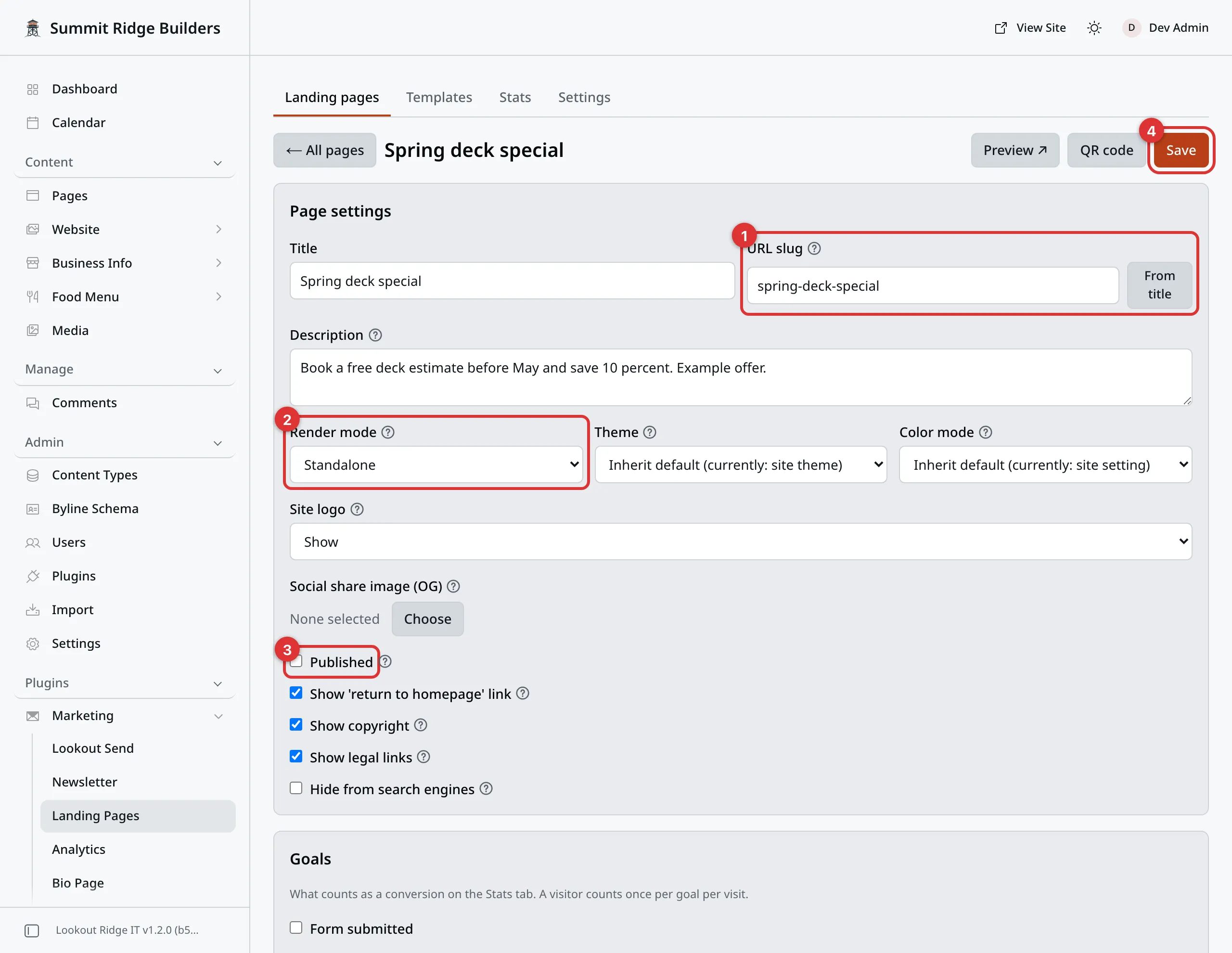
Page settings for a page that is not live yet. Published is cleared.
The numbers in the picture:
- URL slug is the end of the page’s address.
- Render mode picks a bare page or your normal website around it.
- Published puts the page live when you save.
- Save keeps your changes.
Title. The name of the page. It shows in the browser tab.
URL slug. The end of the address. Use small letters, numbers and single
dashes, such as spring-sale. From title fills it in from the title.
Description. The short line that search engines and link previews show.
Render mode. How the page is dressed:
| Choice | What you get |
|---|---|
| Standalone | A bare page. No header, no menu, no footer. Only your words, your sections and a small logo. Nothing pulls a visitor away. |
| In site template | The page sits inside your normal website, with your header, menu and footer. |
Theme. A color palette for this page alone. Step 3: Choose your colors shows every palette.
Color mode. Light or Dark for this page.
Site logo. Show or Hide your logo at the top.
Social share image (OG). The picture that shows when someone shares the link on social media.
Theme, Color mode and Site logo only work in Standalone mode. In site template always wears your site’s own look.
Some boxes start on Inherit default. The words in brackets say what that is now, such as Inherit default (currently: standalone). The default comes from the Settings tab. See Defaults for every page.
Then a row of switches:
| Switch | What it does |
|---|---|
| Published | On means the page is live. Off hides it from everyone but you. Anyone else who opens the link sees a “page not found” screen. |
| Show ‘return to homepage’ link | A link back to your main site, at the bottom. Standalone only. |
| Show copyright | Your copyright line, at the bottom. Standalone only. |
| Show legal links | Links to your privacy, terms and cookie pages, at the bottom. Standalone only. |
| Hide from search engines | Keeps the page out of Google. Good for a page only meant for one ad or flyer. |
Sections
The Sections card is where the page itself gets built. Each section is a strip of the page, stacked top to bottom.
Under the list is Add section, with a button for each kind:
| Section | What it holds |
|---|---|
| Hero | The big top strip: a photo, a short line, a headline, a line under it, and up to two buttons. |
| Capture form | A form that collects the visitor’s details. See below. |
| Features | Rows of short points, each with a title, a few words, and an icon or a photo. |
| Links | Cards that each link somewhere, with a label and an optional picture. |
| Social | Icons for your social accounts. |
| Testimonials | Reviews from your Testimonials, with their stars. |
| FAQ | Questions and answers. Each answer opens when clicked. |
| Trust badges | Badges you add, and your licenses from Credentials if you want them. |
| Gallery | Photos in a grid, or in before and after pairs. |
| Offer | Up to three price choices, with what each one includes. |
| Stats | Up to six big numbers, such as “500 roofs done”. |
| Service area | The towns from your Service Area. |
| Call to action | A closing strip with a headline and buttons. |
| Hours | Your opening hours, with an “open now” line if you want it. |
Drag a section by its grip to move it, or use the up and down arrows. Click a section’s title bar to fold it shut and keep the list short.
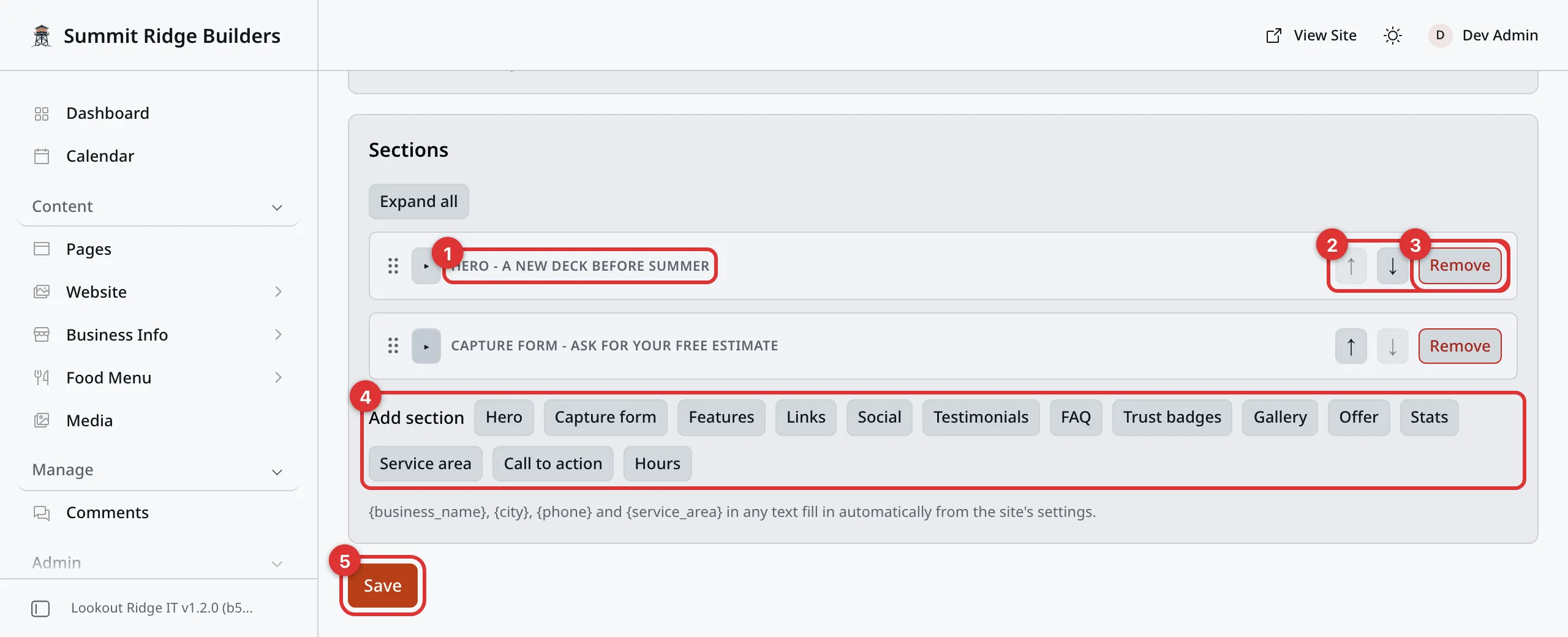
Two sections, folded shut. Add section adds the next one.
The numbers in the picture:
- The title bar folds a section open or shut.
- The arrows move it up or down.
- Remove takes it out.
- Add section has one button for each kind.
- Save keeps your changes.
Remove takes a section out, with everything in it. Your browser asks you to confirm first. It is not gone from the live page until you click Save.
Anything left empty draws nothing. A feature with no words, or a link with no address, is simply left off. Testimonials, Service area and Hours show nothing until those are filled in on your website.
A Hero with no headline and no line under it draws nothing. Put one Hero at the top, and let the other sections follow it.
Words that fill themselves in
Type these in any text box, and your page fills in the real thing:
| Type this | You get |
|---|---|
{business_name} | Your site’s name. |
{city} | The town in your business address. |
{phone} | Your main phone number. |
{service_area} | The towns you serve. |
So “Call {phone} today” might show as “Call 555-0142 today”. A button link of
tel:{phone} calls that number.
A button link of #form jumps down to the first form on the page.
The Capture form section
This is the section that brings you work. Pick what it does in Form type:
| Form type | What it does |
|---|---|
| Contact | Asks for name, email, company and a message. It lands in Leads, like your contact page. |
| Quote request | Asks for name, email, phone, company and the job. It lands in Leads too. |
| Newsletter signup | Asks for an email and adds it to your email list. |
| External form link | Draws a button that opens another form. That can be a form made in Feedback, or one on another website. |
The other boxes:
- Heading and Intro sit above the form.
- Button label is the words on the send button.
- Success message is what the visitor reads after they send it.
- External form URL only appears for External form link. Paste the form’s address there.
Important
Newsletter signup needs your newsletter set up first, under Plugins, then Newsletter. Until it is, this section draws nothing. See Newsletter.
These forms have the same spam protection as your contact page.
Goals: what counts as a win
The Goals card says what counts as a conversion. A conversion is a visitor doing what the page asked. Turn on one or more:
- Form submitted: a visitor sent the form.
- Main button clicked: they clicked the main button in a Hero or Call to action.
- Phone number tapped: they tapped a phone link.
- Link clicked: they clicked a link whose address holds the words you type
in Link contains, such as
google.com/maps.
A visitor counts once per goal per visit. A page with no goals counts visits only.
Trying two versions
The Variants (A/B test) card lets you test two or three versions of the same page. Each visitor sees one of them, split evenly. Nothing is stored on their computer to do it.
- Click Add variant. It starts as a copy of the version you are on.
- Type a name for it, such as “Short headline”.
- Click Edit beside a version to change its sections. The Sections card then names the version you are editing.
- Click Save.
The page’s own sections are the first version. You can have up to three in all.
Warning
Declare winner makes that version the page for every visitor. The other versions and their sections are deleted. Their past numbers stay on Stats.
Compare them on the Stats tab. When one is clearly better, click Declare winner on its row there. Your browser asks you to confirm.
Stats
Open Stats and pick 7 days, 30 days or 90 days.
Each page gets a row with its Views, Conversions and Rate. Rate is the share of views that ended in a conversion. Click the arrow on a page with variants to see each version, with the best one marked Leading.
Visits from people signed in to your panel are not counted, so your own checks do not skew it. Robots are not counted either.
The numbers are a good guide, not an exact count. For more, such as where your visitors came from, see Analytics.
Defaults for every page
The Settings tab holds defaults. Any page box left on Inherit default uses them. Change a default here, and every page that inherits it changes too.
| Setting | What it does |
|---|---|
| Render mode, Theme, Color mode, Show site logo and Social share image (OG) | The same as on a page. A page that sets its own wins. |
| Capture form type | The form type a new Capture form section starts with. It never changes a section you already have. |
| Primary button label | Words for a main button that has a link but no words. |
| Footer disclaimer | A short line at the bottom of every landing page. The fill-in words above work here too. |
Click Save. You see Defaults saved.
A QR code for the page
Once a page is saved, the editor has a QR code button. It shows the page’s public link with a Copy button.
If your website has the QR Codes add-on, Open QR codes ↗ takes you there. Paste the link into a new code. See QR Codes.
If the page is not published yet, the box warns you. A code for it would lead people to a “page not found” screen.
If someone else saved first
Two people may have the same page open at once. If they save first, your save stops. A note says someone else saved changes. Your work is still on screen.
- Click Save again to put your version live. Theirs is replaced.
- Click Discard to load their version instead. Yours is dropped.
Deleting a page
Warning
Deleting a landing page cannot be undone. There is no Trash for landing pages.
The address stops working at once. Any ad, flyer or QR code that points at it now lands on a “page not found” screen.
To take a page down for now, turn Published off and save instead.
Click Delete on the page’s row. Your browser asks you to confirm. You see Landing page deleted.
Last updated Oct 20, 2026