

Plugins
Email Transport
How your site sends email.
Every website has this screen. It is the one screen you should not need.
It is where your website’s outgoing email is set up. Every email your website sends goes through here: your Notifications emails about new leads, and any emails to your customers.
We set it up when your website was built, and it is ours to look after and change.
Go to Plugins, open the System group, and click Email Transport.
The note at the top
Most websites show a line that reads Sending from the default notification domain. Click it to read the note under it. That is normal. It means your website sends its email from our shared sending address, not from your own domain.
Sending from your own domain is an extra you can ask us for. The note also warns that changing the From Address or the key here breaks your email.
If your website already sends from your own domain, the note does not show.
What the boxes mean
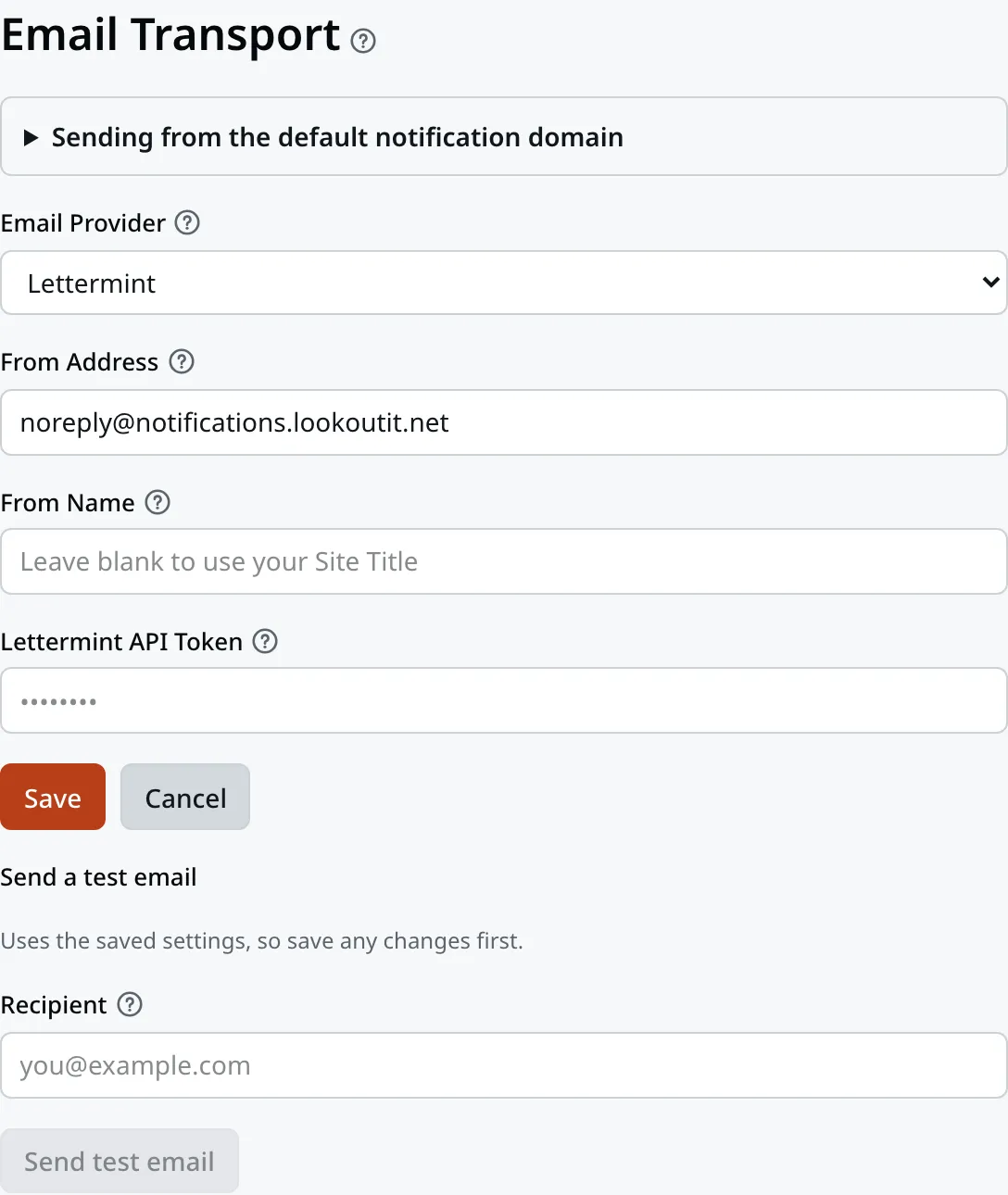
Your screen may show a different set of boxes. That depends on the company that carries your mail.
Email Provider is the company that carries your mail. Think of it as the post office your website hands letters to. It usually reads Lettermint. The other choice is Generic SMTP, which shows a different set of boxes.
From Address is the address your emails are sent from. It is what a customer sees in the From line.
From Name is the name next to it, usually your business name. When it is blank, your Site Title is used.
The last box, Lettermint API Token, is a key. It is what proves to the post office that the letters are really from you. Your website never shows it back to you, so it reads as a row of dots.
Sending a test email
This part is safe to use. It changes nothing. It sends one email, so you can check that your website’s email works.
- Find Send a test email, at the bottom of the screen.
- Type your own email address in Recipient.
- Click Send test email.
A message reads Test email sent. Look in your inbox for an email headed “Test email from your website”. If it is not there after a few minutes, check your junk folder.
If the message is red, or the email never comes, your website cannot send email right now. Contact us.
Leave the rest alone
Warning
Change anything else on this screen and your website may stop being able to send email at all.
You might not see an error when that happens. Inquiries keep arriving in Leads, but the emails about them stop. You find out days later, when you notice how quiet it has been.
Nothing here has to be kept up to date. Read it if you like. Do not save it. If you change a box by mistake, click Cancel before you leave.
Contact support
Contact us for anything to do with this screen:
- lead emails have stopped arriving, and the Delivery log tab in Notifications shows them failing
- a test email does not arrive
- you want your emails to come from your own domain
- your business name has changed
- somebody has already pressed Save here
There is nothing you can break that we cannot put back. Tell us what changed and roughly when, and we will sort it out.
Email support@lookoutridgeit.com. Getting support says what to put in the message.
Last updated Oct 20, 2026