

Plugins
Alert Banner
A short notice across the top of every page, such as new hours or a delay.
Every website has this screen. An Editor can use it, not just an Admin.
An alert banner is a short notice at the top of every page. “Shipping is running two days late.” “We are closed Monday.” “Come see us at the county fair this weekend.”
Go to Plugins, open the Site Layout group, and click Alert Banner.
Until you add one, your website shows no banner at all.
Where the banner shows
The screen tells you this in a box called Where these appear. Here it is in short.
On a computer, the banner floats over the top of the page. It covers the top of your menu until the visitor closes it.
On a phone, it sits above the header instead. It pushes the page down, so it covers nothing. It scrolls away as the visitor reads.
Short messages work best in both places.
Adding a banner
Click New banner. A form called Add a banner opens.
- Check that Enabled has a check mark. With it off, the banner never shows, but it stays on your list.
- Type your words in Message. Plain text only, up to 200 letters. A banner with no message never shows.
- Set the dates, if you want them. See the next part.
- Pick a Tone. That is its color.
- Add a link, if you want one.
- Pick how it goes away, under Dismissal.
- Look at the Preview.
- Click Save.
You are taken back to the list, and you see Banner added.
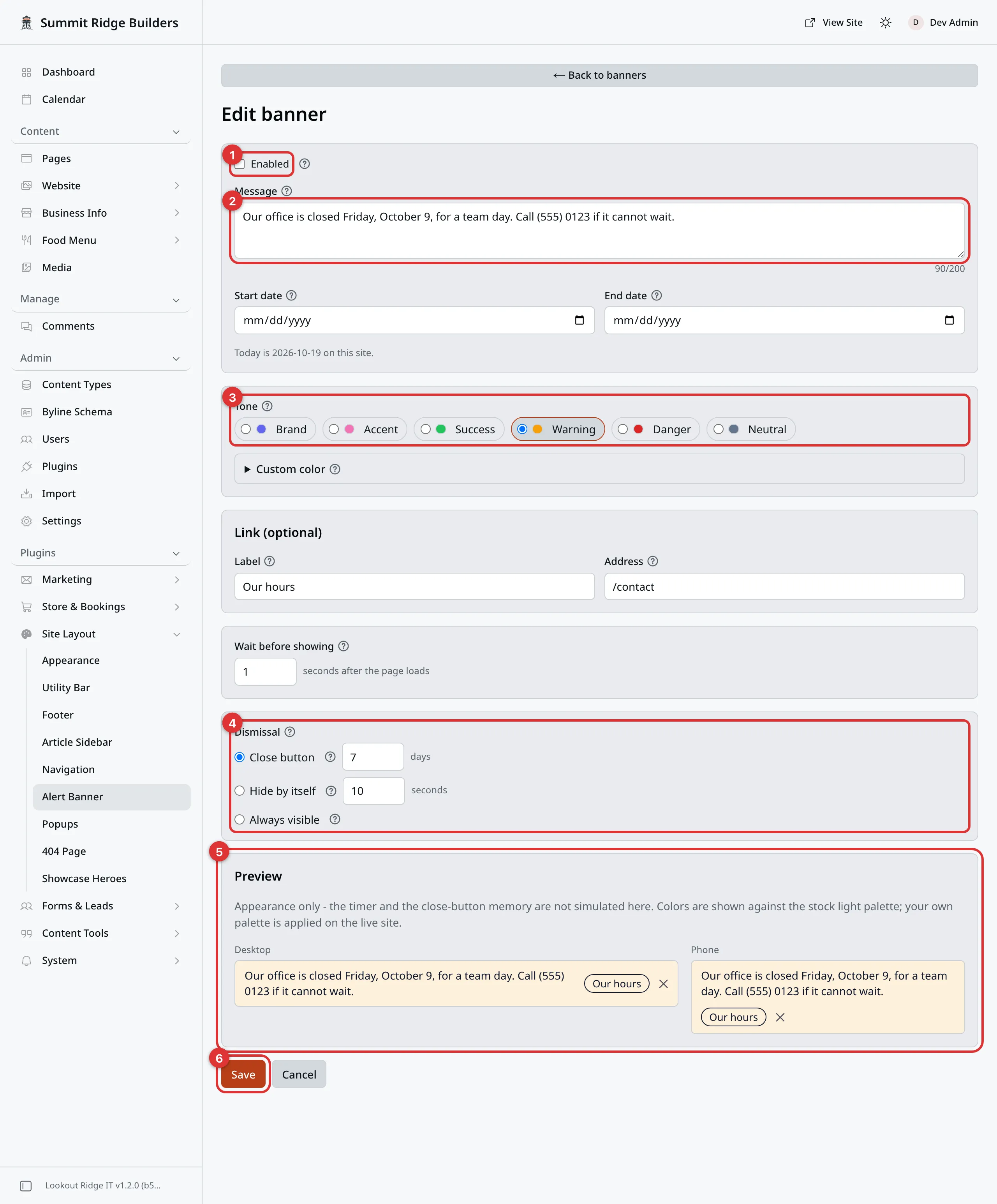
A banner in the form. With Enabled cleared, it never shows.
The numbers in the picture match the steps:
- Enabled turns the banner on or off.
- Message holds your words.
- Tone sets the color.
- Dismissal sets how it goes away.
- Preview shows how it will look.
- Save puts it live, if it is enabled.
Warning
There is no draft here. The moment you click Save, the banner is on your website for everyone, if it is enabled and its dates have come.
Read the message one more time before you save.
Dates
Start date is the first day it shows. Leave it blank to start right away.
End date is the last day it shows. Leave it blank to keep it up until you turn it off.
Both days count. A banner that ends on Friday still shows all day Friday. The form tells you what day it is on your site, so you can check.
If the end date is before the start date, the form warns you. That banner can never show.
Tone and color
Tone picks the color from your website’s own palette. There are six: Brand, Accent, Success, Warning, Danger and Neutral.
Want one exact color instead? Open Custom color and pick it. That color wins over the tone. Your website picks black or white words to go on top, so the words stay easy to read.
A link
The Link (optional) part adds a button to the banner.
- Label is the words on the button, such as “See the details”.
- Address is where it goes. For a page on your own site, start with a
slash, such as
/contact.
You need both. A label with no address, or an address with no label, is left off.
Wait before showing
Wait before showing is how many seconds to pause after the page opens. Then the banner slides down. It starts at 1. Type 0 to show it at once.
The short pause makes people notice it.
Leave any number box blank and it uses its starting value. That goes for the seconds here and the numbers under Dismissal below.
Dismissal: how it goes away
Pick one of three.
| Choice | What it does |
|---|---|
| Close button | Stays until the visitor closes it. Then it stays closed on that visitor’s screen for the number of days you type. It starts at 7. |
| Hide by itself | Fades away on its own after the number of seconds you type. It starts at 10. It has a close button too. |
| Always visible | No close button. It shows on every page, every visit. |
Pick Always visible only for something that truly matters. Visitors on a computer cannot get it off the top of your menu.
When a closed banner comes back
A visitor who closed your banner does not see it again, until the number of days runs out.
Change the words, and it comes back for them right away. That is on purpose. New words are news. This counts the message, the link label and the link address.
Change only the color, the tone or the dates, and it stays closed. They have already read those words.
The Preview
The Preview part at the bottom of the form draws your banner twice: once for a computer, once for a phone. It updates as you type.
It shows the look only. The timer and the close button do not work in it.
The list of banners
Each banner is one row. The columns are Status, Message, Window (its dates), Tone and Dismiss.
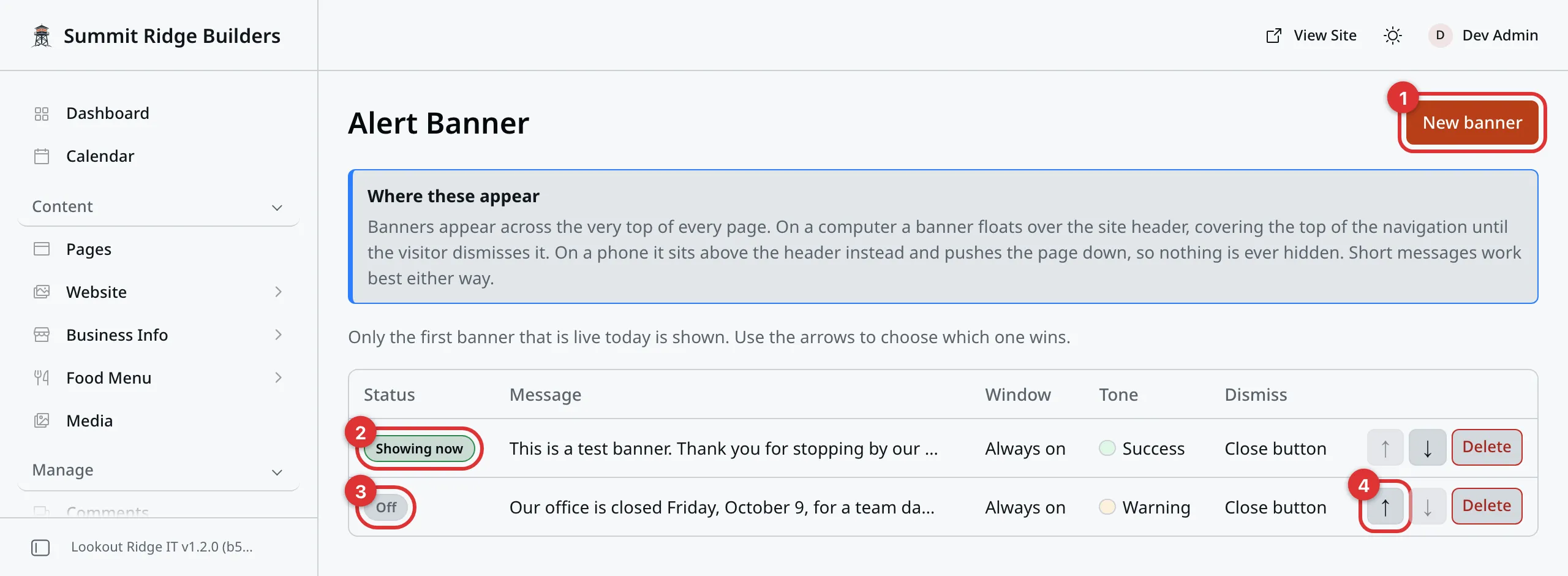
Two banners. The top one is live. The second one is switched off.
The numbers in the picture:
- New banner adds one.
- Showing now is the one visitors see.
- Off means Enabled is cleared.
- The arrows change the order.
The Status column tells you what the public sees right now:
| Status | What it means |
|---|---|
| Showing now | This is the one on your website. |
| Live, but below | It could show, but a banner higher up wins. |
| Scheduled | Its start date has not come yet. |
| Ended | Its end date has passed. |
| Off | Enabled is off. |
| Needs a message | The Message box is empty. |
Click a message to open that banner and change it. Click Save when you are done. You see Banner saved.
Only one banner shows at a time
Your website shows one banner only: the first one on the list that is live today. Every other live banner waits below it.
Use the ↑ and ↓ arrows on a row to move it up or down. The order changes at once. You see Order updated.
So you can line up a few in advance. Put this week’s notice at the top, and next month’s under it with its own dates.
You can keep up to 20 banners.
If someone else saved first
Two people may have this screen open at once. If they save first, your save stops. A note says someone else saved changes. Your work is still on screen.
- Click Save again to put your version live. Theirs is replaced.
- Click Discard to load their version instead. Yours is dropped.
Deleting a banner
Warning
Delete is permanent. There is no Trash for banners, and nothing brings one back.
If you only want it gone for now, open it and take the check mark off Enabled instead. It stays on your list for next time.
Click Delete on the banner’s row. Your browser asks you to confirm. The banner is gone from your website at once.
When the banner is not showing
Look at its Status first. It tells you why.
If it says Showing now and you still cannot see it, you may have closed it yourself. Your browser remembers that. Open your website in a private window to check. That is Cmd+Shift+N on a Mac, or Ctrl+Shift+N on Windows, in Chrome.
If that is not it, tell us.
Last updated Oct 20, 2026