

The manual's MCP server
Give your own AI assistant this manual, so it can answer your how do I questions.
This one has no menu item. It is not part of your website at all.
It is this manual, in a form your AI assistant can read. Ask it how to do something, and it finds the page that says how.
It only reads. It cannot see or change your website, your account, or your leads. Nothing you do with it can break anything.
Connect your AI is the short version of both addresses. The other one, your website’s MCP server, is the one that makes edits.
There is a faster way, and it needs no setup at all. At the top of every page in this manual sits the Ask AI menu. Pick your AI, and that page opens there with your question ready to ask. Ask an AI covers those buttons.
The address
https://mcp.docs.lrit.app/mcp
There is no sign in, no token, and no plan to be on. It is the same address for everyone, and it is free.
What your assistant can do with it
Three things:
- Search the manual for a word or a question.
- Read any page in full.
- List every page in the manual.
Answers come back with the address of the page they came from. Open that page and read it yourself.
Warning
An AI can be wrong. It can sound sure and still be wrong.
The manual page it points at is the real answer. Read that page before you do anything the manual marks with a Warning.
Claude
These steps are for claude.ai in a browser.
- Open Settings, then Connectors.
- Click Add in the top right, then Add custom connector.
- Give it a name, such as Lookout Ridge IT manual, and paste the address.
- Click Add.
No sign in window opens, and there is nothing to approve. It just connects.
Claude Code
Claude Code runs in a terminal window. If that is not something you use, skip this part.
Paste this line:

claude mcp add --transport http lrit-docs https://mcp.docs.lrit.app/mcpChatGPT
ChatGPT needs a paid plan for this: Plus, Pro, Business or Enterprise. Use the website, not the phone app.
First, turn on developer mode. That is the switch that lets ChatGPT add tools from outside its own store.
- Open Settings, then Security and login.
- Scroll down to Developer mode and turn it on.
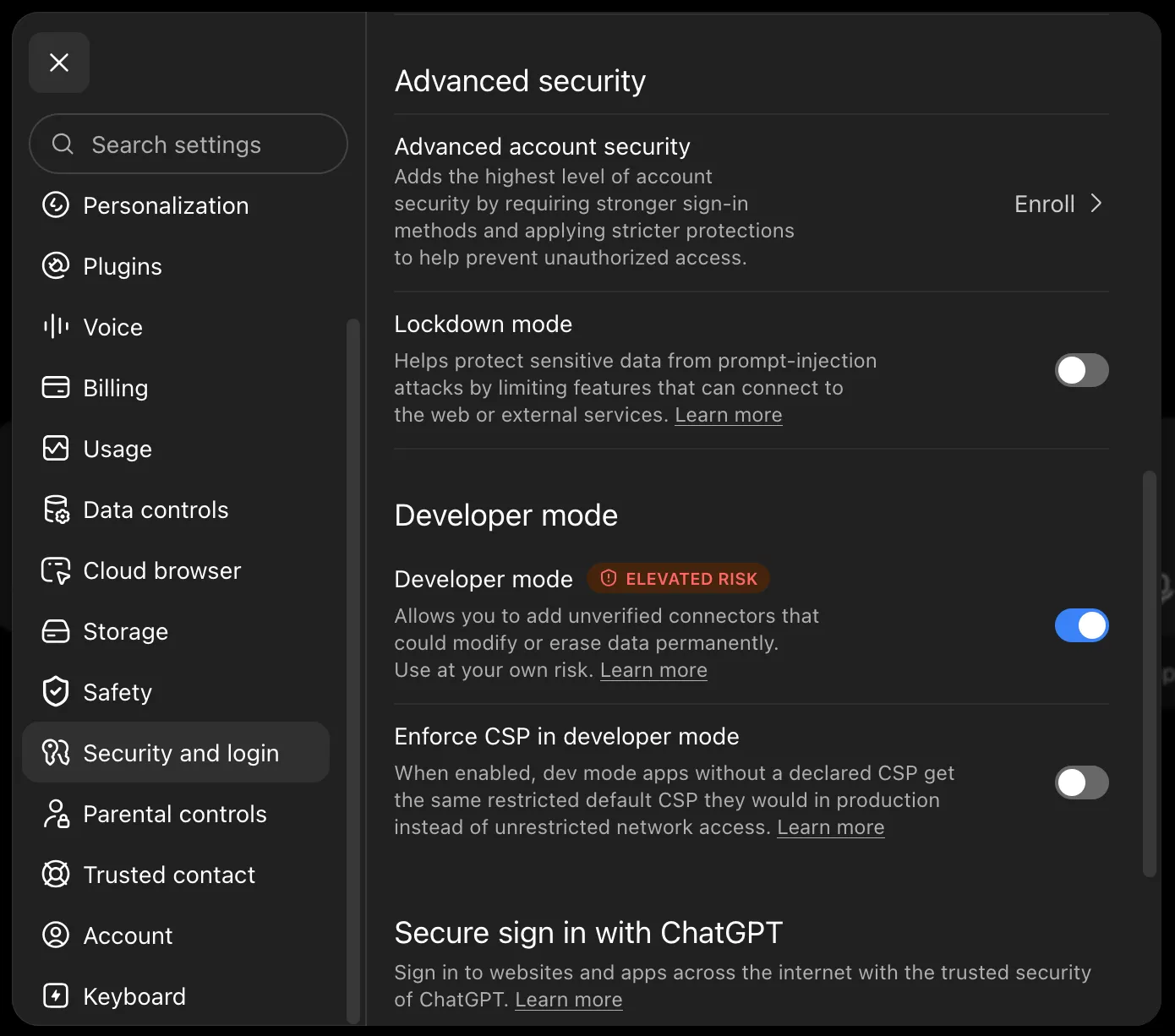
ChatGPT calls it elevated risk because that switch can add any outside tool. The manual’s address is the only one you are adding here, and it only reads.
Then add the manual:
- Open Settings, then Plugins, then Browse plugins.
- Press the + button in the top right corner.
- Paste
https://mcp.docs.lrit.app/mcpand give it a name.
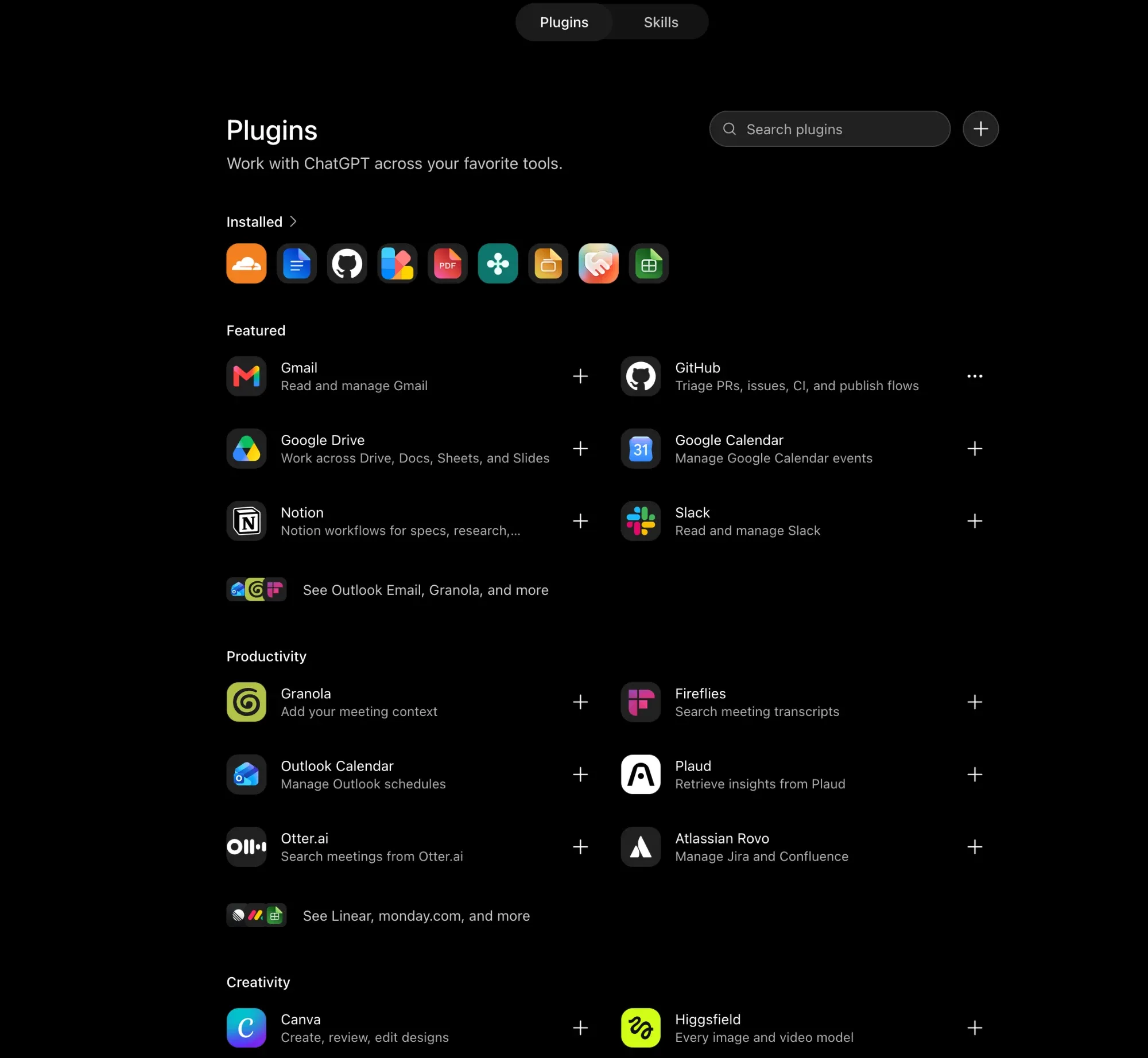
That is all of it. There is no sign in step, and nobody to sign in as.
Your website’s MCP server covers the same screens for the address that edits your site.
If your AI cannot connect to tools
Some AI apps can read an address but cannot connect to tools. Give one of those this address instead:
https://docs.lookoutridgeit.com/llms.txt
That is the whole manual on one page.
Where to go next
Ask an AI about your website covers the buttons at the top of every page. Those need no setup at all.
Getting support says how to reach us when the answer is not in the manual.
Last updated Oct 20, 2026