

Manage
Comments
Reading, approving and removing the comments visitors leave on your blog posts and projects.
Visitors can leave a comment under a blog post or a project. This screen is where those comments arrive, and where you decide which ones the public sees.
Comments are off on every website until an Admin turns them on. You turn them on for posts, for projects, or for both. Content Types shows how, and what each Moderation choice does.
Where to find it
Go to Manage, then Comments. A number beside the name tells you how many comments are waiting for you.
Only Editors and Admins can open it. If comments are off, the screen is simply empty.
What a visitor sees
Under the post sits a Leave a comment form. It asks for a Name, an Email and the Comment, then a Post comment button. The form says the email is never shown on the site, and it never is.
What happens next depends on your Moderation choice. Either the comment waits for you, or it goes up by itself. Once a comment is approved, it shows under the post within about two minutes.
Comments from people signed in to your panel carry a small “From our team” label.
If you set Close comments after (days), an older post stops taking new comments. Its form is replaced by “Comments are closed.” The comments it already has stay.
The four tabs
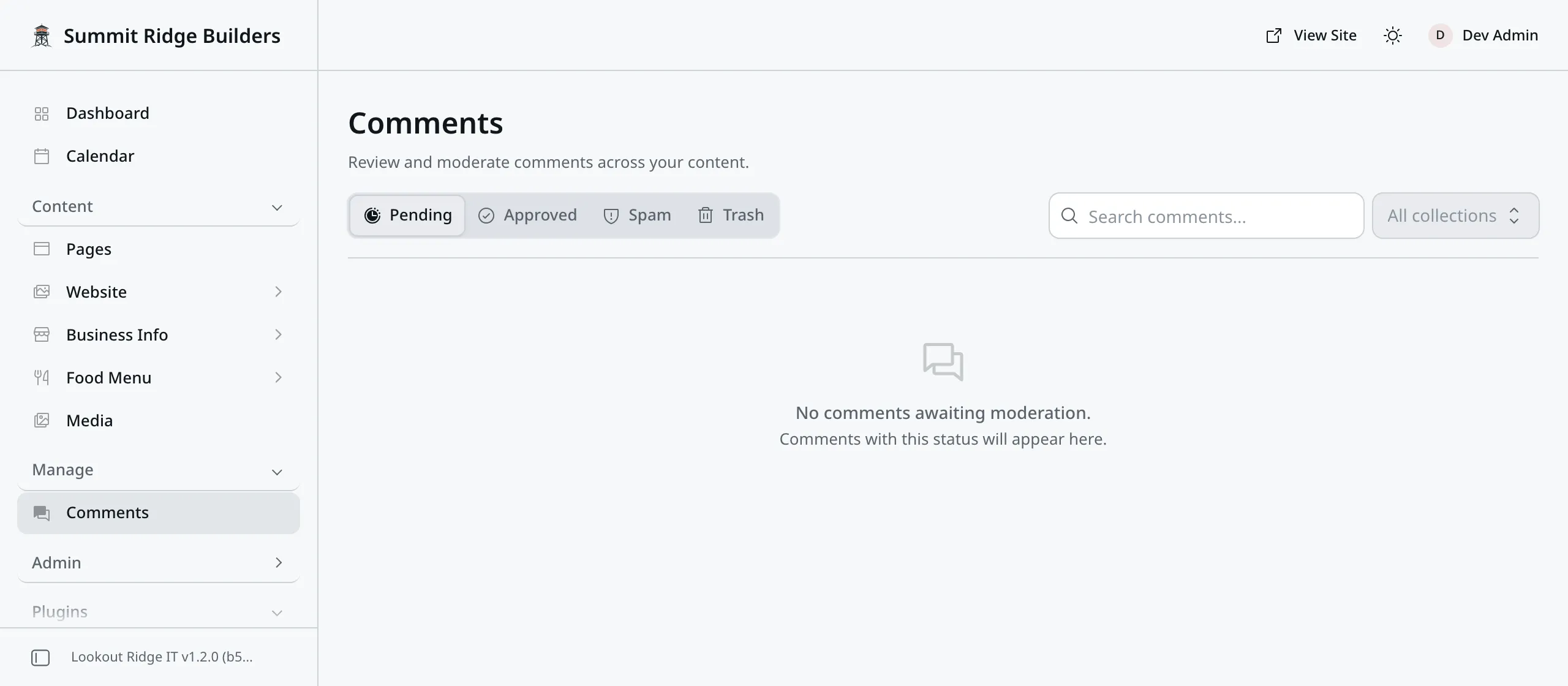
An empty Pending tab. Nothing is waiting for you.
| Tab | What it holds |
|---|---|
| Pending | New comments waiting for you. Nothing here is on your website. |
| Approved | Comments the public can see. |
| Spam | Comments you marked as spam. Not on your website. |
| Trash | Comments you threw away. Not on your website. |
Above the list, a search box finds a comment by its words, and a menu shows one kind of entry at a time, such as posts only.
Approving a comment
- Click the Pending tab.
- Read the comment. Click its row to open the whole thing, with the post it belongs to.
- Click Approve.
The comment moves to Approved, and it shows on your website within about two minutes.
Each row also has small buttons at the end. The green check mark approves. The yellow warning sign marks it as spam. The gray trash icon moves it to the Trash tab.
To handle a lot at once, check the box on each row, then use the buttons above the list.
Taking a comment down
Open the Approved tab and find it. Then:
- Trash takes it off your website and keeps it in the Trash tab.
- Spam does the same, and files it as spam.
Both take it off your website within about two minutes. Changed your mind? Open the tab it went to and click Approve.
Deleting a comment for good
Warning
Delete Permanently removes the comment for good. Nothing brings it back.
Only an Admin sees this button. It is the red trash icon at the end of a row, or Delete Permanently in a comment you have open. The panel asks Delete Comment? Click Delete.
Most of the time Trash is enough.
Getting told when a comment arrives
Your website can send you an alert when a comment is waiting. The event is called Comment awaiting approval. Turn it on under Notifications.
You get at most one alert every ten minutes. When several comments arrive close together, the next alert counts them for you. The alert never shows the visitor’s email address.
Fighting spam
Your website already stops most robots. It hides a trap field only robots fill in, and it slows down anyone who posts many comments in a short time.
Some spam still gets through. That is why All comments require approval is the safe choice in Content Types. Mark anything that looks like an advert as spam, and never approve a comment just because it is polite.
Contact support
Contact us if spam floods in faster than you can clear it, or if a comment breaks the law and you need help with it.
Email support@lookoutridgeit.com. Getting support says what to put in the message.
Last updated Oct 20, 2026