

Plugins
Footer
Build the bottom of every page out of rows, columns and pieces.
Every website has this screen. Only an Admin user can open it.
The footer is the strip at the very bottom of every page. This screen lets you build the middle of it yourself: your links, a few words, your logo, your hours, your social icons.
Go to Plugins, open the Site Layout group, and click Footer.
Your style’s footer
Your website already has a footer. It came with your style. Every style has its own footer layout, built out of the same pieces this screen uses. Appearance is where you see or change your style.
Until you save a footer of your own, this screen opens on your style’s layout. A note at the top reads like this: Using the Classic style’s footer. Edit and save to make it yours. It names your own style.
So you never start from a blank page. Change what you want and save. From then on, the footer is yours.
While the footer is your style’s, it follows your style. Change style, and the footer changes with it. Once you save your own, it stays put, even if you change style later.
Reset to Classic layout at the top loads your style’s layout again. It names your own style. Your browser asks you to confirm. Nothing changes on your website until you click Save.
Two lines always stay at the very bottom: the copyright line, and the credit under it. You cannot change those here.
Warning
Nothing on this screen is live until you click Save. The moment you do, the footer you built is on every page of your website. There is no draft.
How it fits together
Think of it as a table you build.
- A row runs across the whole footer. You can have up to four.
- Each row splits into columns. You pick how many, and how wide.
- Each column holds pieces, one under the next. The screen calls them modules.
On a phone every row folds into one column. The columns stack, left one first.
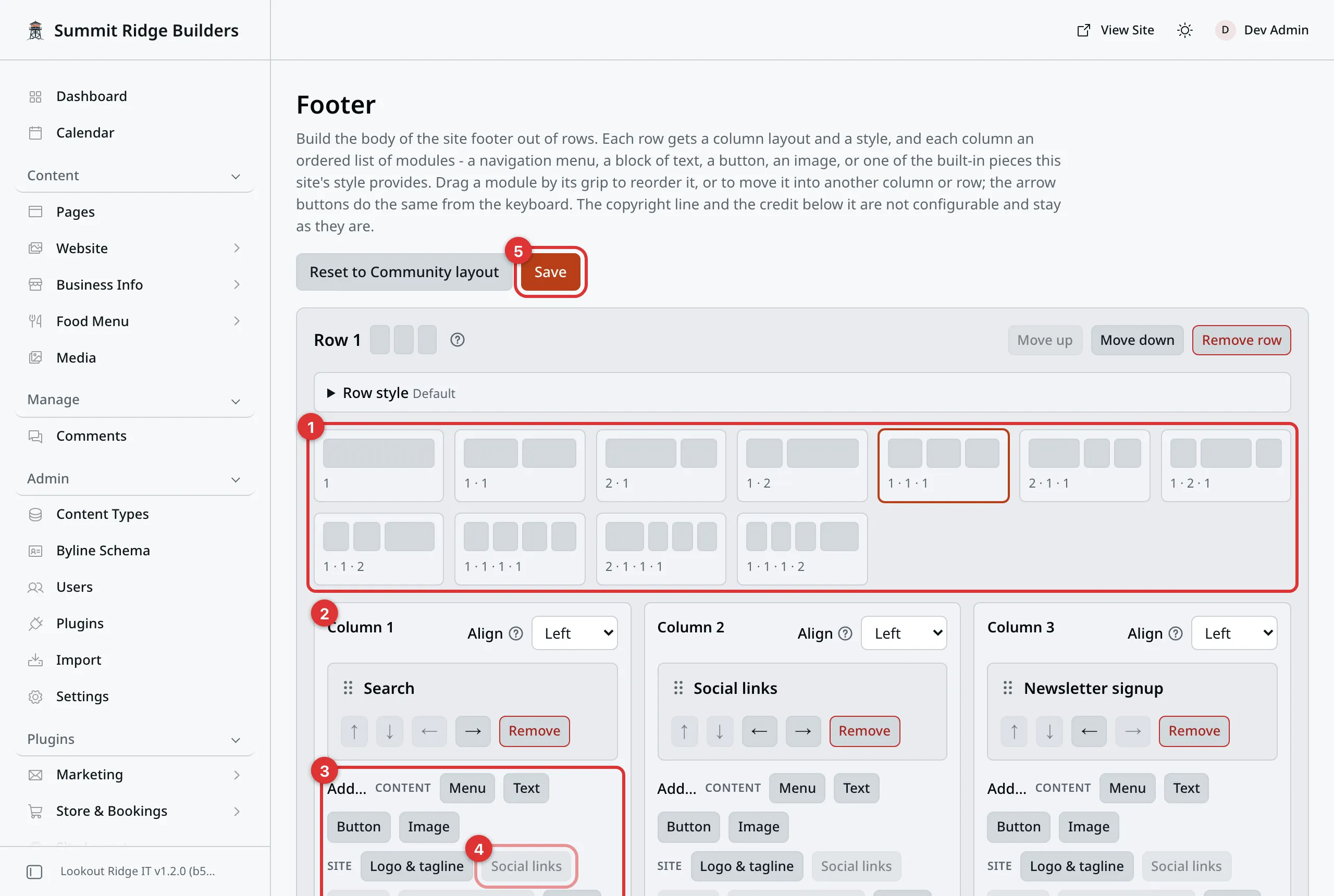
One row with three columns. Each column holds one piece.
The numbers in the picture:
- The layout drawings set how many columns the row has.
- Each column has its own card.
- The Add… line adds a piece to that column.
- A grayed-out piece is already in the footer.
- Save puts the footer live.
Adding a row
- Click Add row at the bottom of the screen.
- A new card appears, such as Row 3.
- Pick a column layout from the row of small drawings.
There are eleven layouts. Read each name as shares of the row. 1 · 1 is two columns of the same width. 2 · 1 is two columns, and the left one is twice as wide. The widest choice is four columns.
Change the layout later and nothing is lost. A piece in a column that goes away moves to the end of the last column that stays.
Move up and Move down on the row card change the order of your rows.
How a row looks
Each row has a Row style line. Click it to open four settings:
| Setting | What it does |
|---|---|
| Background | None, Muted (a soft band), Brand color, or Inverted (light and dark swapped). |
| Spacing | Regular, Compact or Roomy. The space above and below the row. |
| Width | Contained, or Full width so the band reaches both edges of the screen. |
| Divider | A thin line across the top of the row. |
When the panel is shut, the line shows what you picked, such as Muted · Compact. A plain row reads Default.
Adding a piece to a column
Each column has its own card, called Column 1, Column 2 and so on. An empty one says Empty.
At the bottom of the card is a line that starts with Add…. Click a name to add that piece. There are two groups.
Content is what you type or pick yourself:
| Piece | What it shows |
|---|---|
| Menu | A list of links from one of your menus. |
| Text | A few lines of words, such as a short note about you. |
| Button | One button that links somewhere, such as “Book a visit”. |
| Image | A small picture, such as a license badge or a trade group logo. |
Site is ready made. Each one shows something you already set up elsewhere:
| Piece | What it shows |
|---|---|
| Logo & tagline | Your logo and the short line under your name. |
| Social links | An icon for each of your Social Links. |
| Credentials | Your licenses and badges from Credentials. |
| Service area | The towns from Service Area. |
| Search | Your site’s search box. |
| Newsletter signup | A box where visitors join your email list. |
| Blog links | Links for people who follow your blog. |
| Hours | Your opening hours, from your Business Profile. |
| Contact details | Your phone, email and address, from Contact Methods. |
| Header button | The same buttons as the top of the page. See Header button. |
| Business name, address and phone | Your name, your address with a map link, and your main phone number. |
| Branches | A list of your locations, each with its town and phone. See Branches. |
A column holds up to eight pieces.
Each Site piece goes in once
You can use each Site piece one time in the whole footer. Once you have added Social links, its button grays out everywhere. Point at it and it says Already in the footer - there is only one of each.
The Content pieces have no such limit. Two menus in two columns is fine.
Not every piece is on every site. Each style offers only the pieces it can draw. Blog links is in the Blog style. Header button is in the Trades style. Hours and Contact details are in most of the styles built for local businesses.
A Site piece only draws when it has something to show. Search needs Site Search turned on. Newsletter signup needs your newsletter set up, with its footer switch on. See Newsletter. Branches needs at least one published branch. Business name, address and phone needs an address or a phone number.
A row where nothing has anything to show is left out of the footer.
Filling in a Menu piece
| Box | What it does |
|---|---|
| Menu | Which menu’s links to show. The list shows every menu, even ones you made yourself. |
| Heading | The small title above the links, such as “Company”. Blank uses the menu’s own name. |
| Layout | Stacked list, One line, or Two columns. |
| Show heading | Shows or hides the heading. |
| Collapse on phones | On a phone, the heading becomes a button that opens and shuts the links. Wider screens always show the links. It needs Show heading on. |
The links themselves live on the menu, not here. To change them, go to Plugins, open the Site Layout group, and click Navigation. See Menus.
Important
A footer menu shows its top row of links only. A link that sits under a parent link does not show here at all. Keep footer links on No parent (top level).
Filling in a Text piece
Heading is optional. Text holds the words. Size makes them Small, Body or Lead (the biggest). Show heading hides the heading without deleting it.
Leave a blank line to start a new paragraph. It holds up to 1,000 letters.
Two marks work inside the text:
**open daily**shows as bold: open daily.[our story](/about)shows as a link that reads “our story”.
A link can be a page on your site that starts with a slash, a full web
address, an email such as mailto:hello@northwind-heating.example, or a
phone number such as tel:555-0199.
Filling in a Button piece
Type the words in Label. Type where it goes in Link, such as
/contact. It takes the same kinds of link as a Text piece.
A button needs both. The screen will not let you save one that is missing either.
Filling in an Image piece
Use this for a small badge, such as your trade group’s logo. It shows at badge size, not full width.
- Click Choose image and pick one from your Media library.
- Type Alt text: what the picture says, such as “Better Business Bureau member”. Screen readers read it out.
- Type a Link if the picture should open a page. Leave it blank if not.
A picture that is only there to look nice can skip the alt text. Check Decorative - screen readers skip it instead. A linked picture always needs alt text, because it names the link.
Moving a piece
Drag a piece by the grip on the left of its title. You can drop it lower in the same column, in another column, or in another row.
The arrow buttons do the same without dragging. ↑ and ↓ move it up and down its column. ← and → move it to the column next door.
Align at the top of each column sets which side its pieces line up on: Left, Center or Right. Right only applies on wider screens. On a phone it lines up on the left.
Taking things out
Remove on a piece takes that one piece out.
Remove row takes out the whole row and every piece in it. If the row holds anything, your browser asks you to confirm first.
Neither one is live until you click Save.
Saving
Warning
The moment you click Save, the new footer is on every page of your website.
Check the whole screen before you save. If you took out every row, saving puts your style’s footer back.
Click Save. There is one at the top right and one at the bottom. You get a message reading Footer saved.
If you saved your style’s layout without changing it, the message adds that the footer follows your style. It will keep changing when your style does.
If a piece has a problem, such as a button with no link, the screen says so in red and will not save. Fix the piece it marks, then save again.
Then open your website and scroll to the bottom to check it.
If someone else saved first
Two people may have this screen open at once. If they save first, your save stops. A note says someone else saved changes. Your work is still on screen.
- Click Save again to put your version live. Theirs is replaced.
- Click Discard to load their version instead. Yours is dropped.
A piece with a warning on it
Sometimes a piece carries a label that reads Not rendered by the Classic style, with your own style’s name.
That piece was added while your website wore a different style. The style you have now cannot draw it, so it shows nothing. It is not broken, and it does no harm. Click Remove on it, or leave it be.
When something is missing
My footer still looks the same. You did not click Save.
A menu piece shows nothing. The menu is empty, or it was deleted. Check it under Site Layout, then Navigation.
A link is missing from a menu piece. It has a parent link. Footer menus show the top row only.
A Site piece shows nothing. It has nothing to show yet. Fill in the entry it reads from, using the table above.
A picture will not delete from Media. It is in your footer. Take it out of the Image piece and save. Then you can delete it.
If that is not it, tell us.
Last updated Oct 20, 2026