

Help
Is this manual for my site?
What the version line at the bottom of every page means, and how to check it against your own website.
Every page in this manual ends with one small line. It looks like this:
Checked against EmDash 1.2.0 and Lookout Ridge IT template 0.64.0 on October 19, 2026.
It says what we checked the manual against, and when. Your own website shows both numbers too. This page shows you where to look.
The two numbers
Your website is built from two parts. Each part has its own number, and two different teams make them.
EmDash is the system your website runs on. The EmDash project builds it. That is the first number.
The Lookout Ridge IT template is the design and the features we built on top of it. We build that one. That is the second number.
The two move at their own pace. One can go up while the other stays put.
Find your EmDash number
This one is in your admin panel.
- Sign in to your admin panel.
- Look at the bottom left corner of the screen, at the foot of the menu.
- Read the number after Lookout Ridge IT.
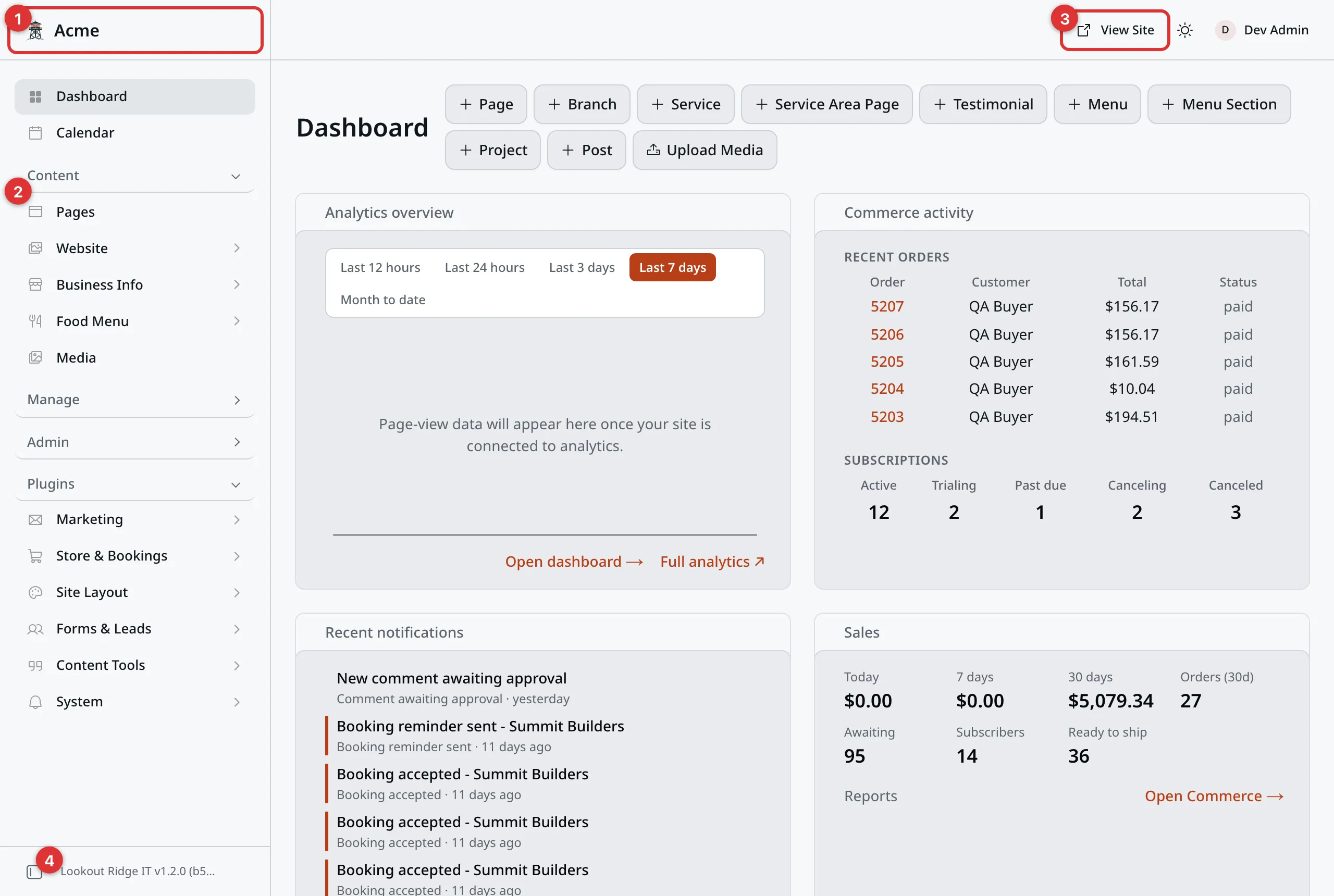
The Dashboard in the admin panel. Number 4 is the EmDash version, down in the bottom left corner.
The line reads something like Lookout Ridge IT v1.2.0 (b5f37c646). The part
you want is 1.2.0. The short code after it is for us, and you can skip it.
The end of the line may be cut off with three dots. That is fine, as long as
you can read the number.
The admin panel walks through the rest of this screen.
Find your template number
This one is on your public website, not in the panel.
- Open your website. Click View Site in the panel, or type your address in your browser.
- Scroll all the way to the bottom of the page.
- Find the line that starts with Powered by. The number sits right after our name, such as v0.64.0. Every style puts this line at the very bottom.
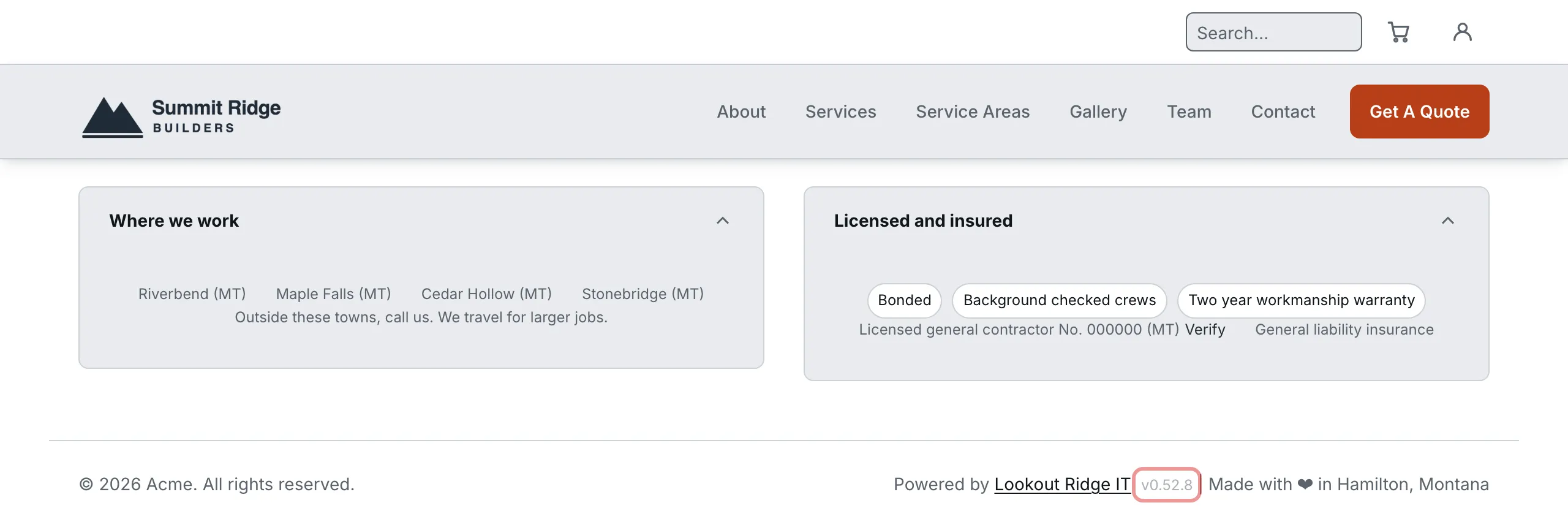
The bottom of a website. The template version sits right after our name. Your own number will be different.
When a number on your site is higher
Your website is newer than this manual. Nothing is wrong, and you have nothing to fix.
Keep reading. The steps still work. A picture here may not match your screen, and a button may have a new name. The job is the same one.
Then tell us, and we will bring the manual up to date.
Contact support
Contact us when a number on your website is higher than the one at the bottom of this page. Tell us both numbers, copied off your own site.
Email support@lookoutridgeit.com. Getting support says what to put in the message.
When a number on your site is lower
Your website has not had that update yet. Nothing is wrong, and there is nothing for you to do.
Last updated Oct 20, 2026