

Shipping
Shipping rates and pickup, the ready-to-ship queue, postage labels through your own Shippo account, and tracking.
Add-on
Commerce is an add-on, so not every website has it. If it is not in your menu, see Add-ons to add it.
Shipping has two halves.
- What buyers pay, and how it goes. Your rates, the places you ship, and pickup. These live on the Settings tab, under Shipping. See Shipping settings.
- Getting parcels out the door. The Shipping tab is your packing bench. It lists every order that is packed and waiting to go out, and gets the tracking number back onto each one.
Go to Plugins, then Commerce. Click the Shipping tab.
No Shipping tab? It only shows when This store ships physical goods is checked, on Settings, then Shipping. A store that sells only plans, classes or files does not need it.
How an order gets here
An order joins the queue when you move it to Ready to Ship. You do that on the order itself, or for many at once from the Orders tab. See Orders.
Nothing lands here on its own when it is paid. That is on purpose. A shop that makes things to order needs time to make them first.
An order leaves the queue when it gets a tracking number. It then reads Shipped.
The tiles
| Tile | What it counts |
|---|---|
| Ready to ship | Orders in the queue right now. |
| Shipped today | Orders that went out today. |
| Awaiting tracking | Orders marked shipped that have no tracking number. |
| Ready for pickup | Pickup orders waiting to be collected. Only when you offer pickup. |
The views
Chips above the list switch between views. They show only when you have more than one.
| View | What it lists |
|---|---|
| Shipping queue | Orders ready to ship. |
| Bought labels | Every order with a Shippo label, newest first, to print again. |
| Manual labels | Labels you bought for things that are not orders. See Manual labels. |
| Pickups | Pickup orders. See In-store pickup. |
Bought labels and Manual labels show only when Shippo is connected.
The queue
One row is one order. The columns are Order, Date, Customer, Destination, Items and Status. Destination is the town and state it is going to.
Click a row to open the order. It is the same view as on the Orders tab.
When the queue is empty it reads “Nothing is ready to ship.”
Three ways to ship
Pick the one that suits you. You can mix them.
- By hand. Post it your own way, then type the tracking number on the order. See Adding tracking by hand.
- With a file. Export a list of addresses, buy labels in another tool, then bring the tracking numbers back in. See Export and import.
- With Shippo. Buy the label right here, and the tracking fills itself in. See Buying a label.
Warning
Every way that adds a tracking number also emails your customer a Shipped notice with that number. It goes the moment the number is saved.
Check your numbers before you save them.
Working on many orders at once
Check the box at the left of each order. A bar appears, counting what you picked.
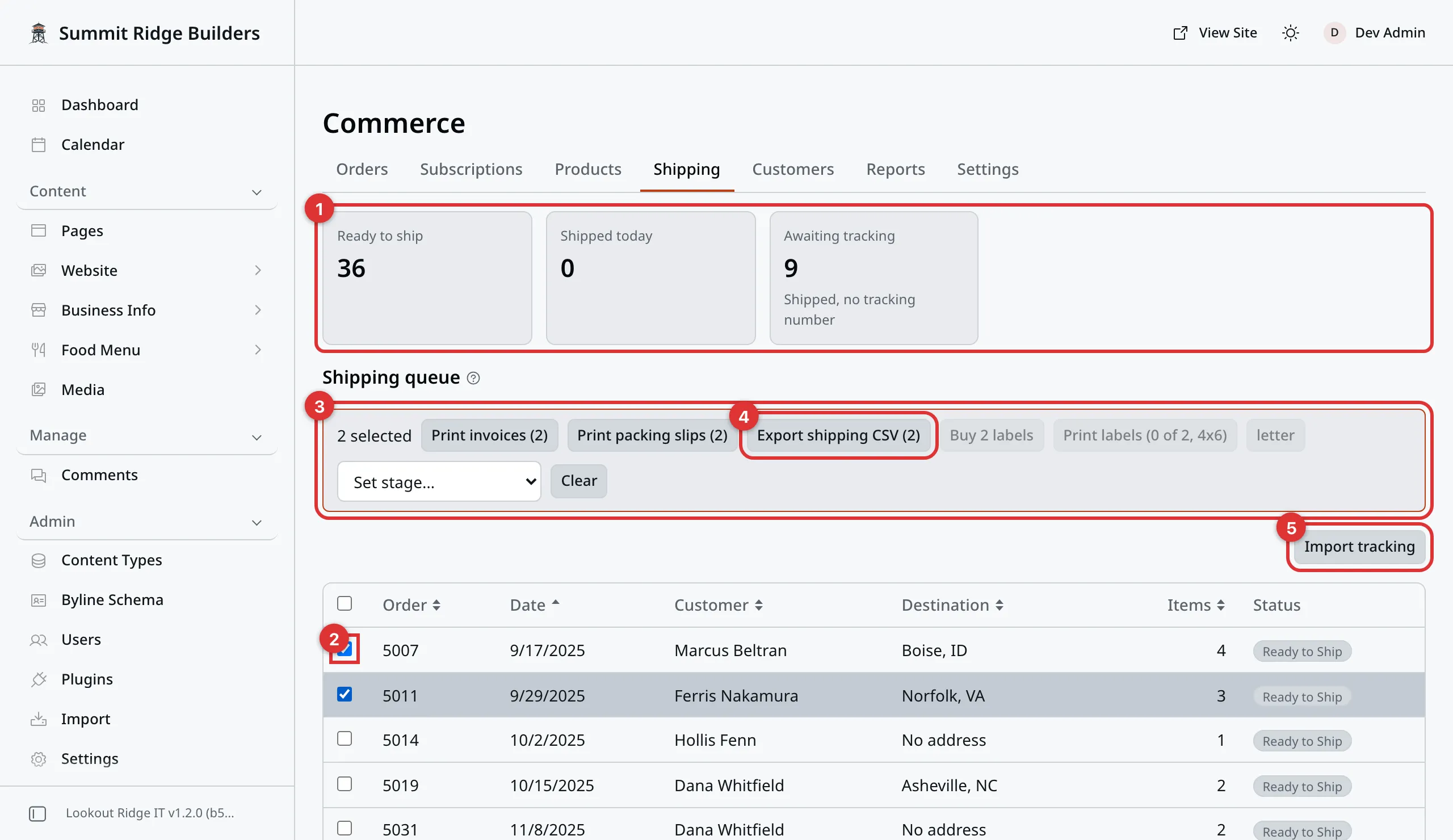
The shipping queue with two orders picked. The bar above the list acts on both.
The numbers in the picture:
- The tiles. See The tiles.
- The box that picks an order.
- The bar of buttons for the orders you picked.
- Export shipping CSV. See Export and import.
- Import tracking brings tracking numbers back in.
| Button | What it does |
|---|---|
| Print invoices | One invoice per order, ready to print. |
| Print packing slips | One packing slip per order. It shows no prices. |
| Export shipping CSV | Saves a file of names and addresses. See below. |
| Buy label | Buys a label. With several orders picked, it reads Buy 2 labels, and so on. Needs Shippo. |
| Print labels | Prints the labels you already bought, in your usual size. |
| The button beside it | Prints the same labels in your other size. It reads letter or 4x6. |
| Set stage… | Moves every picked order to another stage. |
| Clear | Unchecks the lot. |
Each button shows how many orders it acts on. You can pick up to 100 orders at once.
Print labels reads “Buy a label first” when none of the picked orders has a label yet.
Export and import
This is the way to use any label tool you like, such as Pirate Ship.
Export shipping CSV
- Check the orders you want to ship.
- Click Export shipping CSV.
- A file named
shipping-and today’s date saves to your computer.
The file has one row per order: the order number, name, address, email, phone, items, weight and total. Most label tools can read it.
Orders with no address, orders already shipped, and refunded orders are left out. A message says how many were skipped, and why.
Warning
This file holds your customers’ names, home addresses, emails and phone numbers. Once it is on your computer, keeping it safe is up to you.
Do not email it around. Delete it when the labels are done.
Import tracking
When your label tool gives you tracking numbers, bring them back in one go.
- Click Import tracking, above the queue.
- Paste the file’s text into the box, or choose the file.
- Click Preview.
- Read the table. Each row says Will ship, Already shipped, No match, or Picked up in store, skipped.
- Click Mark … orders shipped. It names how many.
The file needs a column for the order and a column for the tracking number. A
carrier column is optional. Headings such as Order Number, Tracking and
Carrier all work. The order column can hold the invoice number, such as
1001.
Nothing is saved until you click Mark … orders shipped. Rows that match no order are listed in a warning box, and left alone.
An order that already has tracking is skipped. Check Overwrite existing tracking to replace it instead.
Every order you mark gets a Shipped email, as the warning above says.
Close import hides the box again.
Buying a label
You need a Shippo account connected first. See Connect your Shippo account.
Warning
Buying a label charges your Shippo account. It is real money, spent the moment you confirm.
If the internet drops while you buy, the message says the purchase “may or may not have gone through”. Do not retry right away. The order is held for 10 minutes. After that, buying again checks Shippo first, and records the label if it was bought.
- Pick one order in the queue and click Buy label. Or open the order and click Buy label there.
- Pick a box from the Parcel list, or type the Length (in), Width (in), Height (in) and Weight (lb). Typing a size picks Custom.
- Click Get rates.
- Pick a rate. Each shows the carrier, the service, the price and about how many days it takes.
- Click the Buy label button. It shows the price.
- Your browser asks you to confirm, and names the carrier and the price. Read it, then click OK.
The label opens in a new tab, ready to print. The tracking number is saved on the order, and the order reads Shipped. Your customer gets the Shipped email.
When the buyer paid for a service at checkout, that service is picked for you. An order in more than one box gets a label for each box.
Buying labels in a batch
- In the queue, check two or more orders on the page.
- Click Buy 2 labels (it counts what you checked).
- Pick one Parcel, then click Get rates.
- Pick one service for all of them.
- Click the buy button, and confirm.
Each label is bought on its own. Any order that cannot be bought is listed, with the reason. Then print them all as one file.
Printing labels again
A label you bought is kept. Open the order and click Print label. Or pick orders in the queue, or in Bought labels, and click Print labels.
Shipping labels bought through Shippo are kept for 12 months, then deleted. That keeps your customers’ home addresses from sitting around for years.
Voiding a label
Bought the wrong label? Void it, and Shippo asks the carrier for your money back.
Warning
Do not ship with a label once you void it. The refund can take days. For USPS it can take weeks.
- Open the order. On the Customer card, find Shipping labels.
- Click Void label.
- Your browser asks you to confirm. Click OK.
The label reads as pending until Shippo confirms. Click Refresh to check.
Once the refund goes through, the order goes back to Ready to Ship. You can change its address and buy a new label. The buyer gets a fresh Shipped email with the new tracking number.
A delivered label cannot be voided.
Manual labels
A manual label is postage for something that is not an order. A return, a sample, a part for a customer.
- Click Manual labels, then Create label.
- Leave Ship from the store’s address checked, or uncheck it to type another.
- Fill in the Ship to address.
- Pick a parcel, and click Get rates.
- Pick a rate.
- Type a Reference, Tags or a Note, if you like.
- Click the Buy label button, and confirm.
The list shows one month at a time, with what you spent that month. Filter it by Month, Status, Carrier or tag. Click a label to print it again, refresh it, or void it.
Manual labels are kept for 12 months. Names and street addresses are then cleared.
In-store pickup
You can let buyers collect their order instead. Set up your pickup places first. See Pickup locations.
At checkout, a buyer sees Pick up when everything in the cart can be collected at one place. A pickup has no shipping charge and asks for no address.
Pickup orders show in the Pickups view. Filter them by Location or Stage.
- When the order is ready, open it.
- Set Fulfillment to Ready for pickup, and click Update.
- The buyer gets an email with the address, hours and your pickup instructions.
- When they collect it, set it to Picked up.
The Ready for pickup email always goes. Picked up only sends an email if that stage is switched on. See Customer emails.
What the buyer sees
The Shipped email has a Track your package button. It opens a page on your own website that shows each box on its way. The link works for 120 days.
A signed-in buyer also reaches it from their account.
Shipping settings
Go to Plugins, then Commerce. Click the Settings tab, then Shipping.
The tab has these boxes, top to bottom: Where you ship, Shipping insurance, Returns, Shipping profiles, Pickup locations and Labels. Click Save at the bottom when you are done.
Where you ship
This store ships physical goods starts checked. Uncheck it if you only sell plans, classes or files. That hides the Shipping tab.
Ship to (country codes, comma-separated) lists the countries you send
goods to. Two letters each, like US,CA. Blank asks for no address and
charges no shipping.
Shipping profiles
A profile is a set of rates. Most stores need one. A store with heavy or bulky items can add a second, just for those.
Each profile has Zones: the places it ships to. Each zone has Rates: the choices a buyer picks from. A store that never set up profiles starts with one called General.
- Open a profile, or click Add shipping profile.
- Type a name in Profile name. Only you see it.
- Under Zones, open a zone, or click Add zone.
- Pick the Countries it covers. Checking none means every country no other zone names. For the US, you can list US states (optional) too.
- Under Rates, click Add rate.
- Type the rate’s name, such as
Standard. Buyers see this name. - Pick how it is Charged, and fill in the amounts.
- Click Save.
| Charged | What the buyer pays |
|---|---|
| Flat rate | One amount, such as $8. |
| By weight | An amount for each weight step, such as up to 5 lb. |
| By order price | An amount for each order size, such as up to $50. |
| Live carrier rates (Shippo) | The carrier’s real price to the buyer’s address. Needs Shippo. |
Free when the order is at least makes a rate free over an amount. Blank means never.
Every product ships on the default profile, unless its own page picks another. See Products and Plans. A cart with products on two profiles ships as two shipments. The buyer picks a rate for each, and pays both.
An address that no zone covers is turned away at checkout.
Live carrier rates
A live rate asks Shippo for each carrier’s price, at checkout, to the buyer’s address.
- Services offered picks which ones to show, such as UPS Ground. Checking none shows the 3 cheapest.
- Handling fee adds an amount to each price.
- Markup (%) adds a percent to each price.
- Cheapest service is free when the order is at least makes the cheapest one free over an amount. Faster ones keep their price.
Keep a flat rate in the same zone. Checkout offers it whenever Shippo cannot give a price, so checkout never gets stuck.
The parcel size comes from each product’s weight and box size. A product with no box size uses your first parcel preset. See Labels.
Shipping insurance
Check Offer shipping insurance at checkout to let buyers add insurance. The buyer sees an Insure this shipment box. It needs Shippo.
Pick its Pricing: Percent of the goods, with a Minimum price, or a
Flat fee. Require insurance from makes it a must over an amount. 0
means never.
The label you buy then carries the insurance.
Returns
Return policy tells Google and other shopping sites how you take returns. It does not change how refunds work.
Pick Not stated, Returns accepted or No returns (final sale). With Returns accepted, fill in the Return window (days), How to return, Return shipping and any Restocking fee.
Returns page links to your own returns page, such as /returns.
Pickup locations
- Click Add pickup location.
- Type a Location name, such as
Main Street store. - Fill in the address.
- Type the Hours, such as “Mon to Fri, 9am to 5pm”.
- Type Usually ready in, such as “2 hours”.
- Write any Pickup instructions. Only buyers of this place see them.
- Click Save.
Then turn on pickup for each profile. Open the profile, find In-store pickup, and check Customers can pick these items up.
Offered at checkout hides a place without deleting it.
If your website has branches, you can link a place to a Branch. Its hours then follow the branch. See Branches. If the branch moves, this box says so, and offers Use the new address.
Sales tax on a pickup is worked out at the pickup address.
Labels
Shipping provider picks how you ship:
- None (mark orders shipped by hand) means you post things your own way.
- Shippo lets you buy postage labels from inside the panel.
The rest of this box is about Shippo.
Connect your Shippo account
Shippo is a firm that sells postage labels for many carriers, at a discount. The account is yours, and the labels are paid for from it. So you set this up yourself.
Step 1. Make a Shippo account
Go to https://goshippo.com and sign up in your business name. Add a way to
pay in Shippo. Every label you buy is charged there.
Step 2. Copy your API token
- In Shippo, go to Settings, then API.
- Copy your token.
A test token starts with shippo_test_. It makes sample labels you cannot
post with. A live token starts with shippo_live_. It buys real labels, for
real money. Start with the test one if you want to try it out.
Step 3. Paste it into the panel
- Go to Plugins, then Commerce. Click the Settings tab, then Shipping.
- Make sure This store ships physical goods is checked.
- Under Labels, set Shipping provider to Shippo.
- Paste your token into Shippo API token.
- Click Save.
A box reading Shipping labels are off shows until a token is saved.
The box shows “Currently set” from then on, not the token. That is normal. To change it, type the new token and save again.
Contact support
If saving the token shows an error that names a setting on your website, nothing was saved. That one needs us. Do not try a different token.
Email support@lookoutridgeit.com. Getting support says what to put in the message.
Step 4. Your ship-from address
Shippo needs to know where parcels start. Fill in Ship-from name,
Ship-from phone, Address line 1, Address line 2, City,
State / province, Postal code and Country code. The country is two
letters, such as US.
This can be your workshop, not your shop front. It is only used on labels and live rates.
Step 5. Label size and parcel sizes
Label format picks the size a label prints at.
- 4×6 thermal is for a label printer.
- Letter (8.5×11) is for an office printer.
Parcel presets saves the boxes you use most. One per line, like this:
Small box: 8x6x4 in, 1 lb
That is the name, then length, width and height in inches, then the weight in pounds. A line the panel cannot read shows as an error under the box. The first line is the box live rates use when a product has no size.
Live rate packaging picks how live rates size a parcel. Simple weight puts the total weight in your first box. Boxes / volume packs the items into your boxes.
Step 6. Set up the tracking link
The tracking link lets Shippo tell your website when a label is ready and when a parcel is delivered. Without it, labels still work. You just miss the Delivered email.
- Find Tracking webhook secret URL, under the token.
- Click Generate. A long web address appears under the box.
- Click Copy URL. Keep it handy, because it is not shown again after you save.
- Click Save at the bottom of the page.
- In Shippo, go to Settings, then Webhooks.
- Add a webhook for the
transaction_updatedevent. Paste the address you copied. - Add a second webhook for the
track_updatedevent, with the same address.
Lost the address before you pasted it? Click Generate again, save, and put the new address in both Shippo webhooks. The old one stops working.
Clear stored value turns tracking updates off.
Address checks
Verify addresses with Shippo checks each address a buyer types at checkout. If it looks wrong, the buyer sees “Did you mean …?” and picks. It never stops a payment.
Warning
Shippo charges for each check, on your Shippo account. About 2 cents in the US, and 8 cents elsewhere. Check your own Shippo price first.
- Check the box that starts I understand Shippo charges for each address check.
- Turn on Verify addresses with Shippo.
- Click Save.
Buyers who ship on their own account
Some business buyers have their own UPS or FedEx account. Turn on Let customers ship on their own UPS or FedEx account, then check UPS, FedEx or both.
At checkout, they pick Ship on my own carrier account, the service, and type their account number. They pay you no shipping. When you buy the label, the carrier bills their account.
Warning
This needs your own UPS or FedEx account connected in Shippo. If the buyer’s account does not pay, the carrier bills yours. Shippo’s label fee still applies.
Contact support
Contact us if:
- the Shipping tab is missing and This store ships physical goods is checked
- labels buy in Shippo but the tracking never reaches the order
- the Delivered email never goes out, and the tracking link is set up
Never send us your Shippo token.
Email support@lookoutridgeit.com. Getting support says what to put in the message.
Last updated Oct 20, 2026