

Content
Menus (Food)
Food menus shown on your site.
Add-on
Menus (Food) is an add-on, so not every website has it. If it is not in your menu, see Add-ons to add it.
A menu here is one whole food menu: Lunch, Dinner, or Catering. One entry is one menu.
A menu holds a name and a line or two of intro. It does not hold your food. Your dishes live in Menu Sections (Food). A section is one part of the menu, such as Tacos, Burritos, or Drinks.
Go to Content, then Food Menu, then Menus (Food).
Important
The links across the top of your website are a different kind of menu. They are edited under Plugins, then Site Layout, then Navigation, and have nothing to do with food. See Menus.
The list of your menus
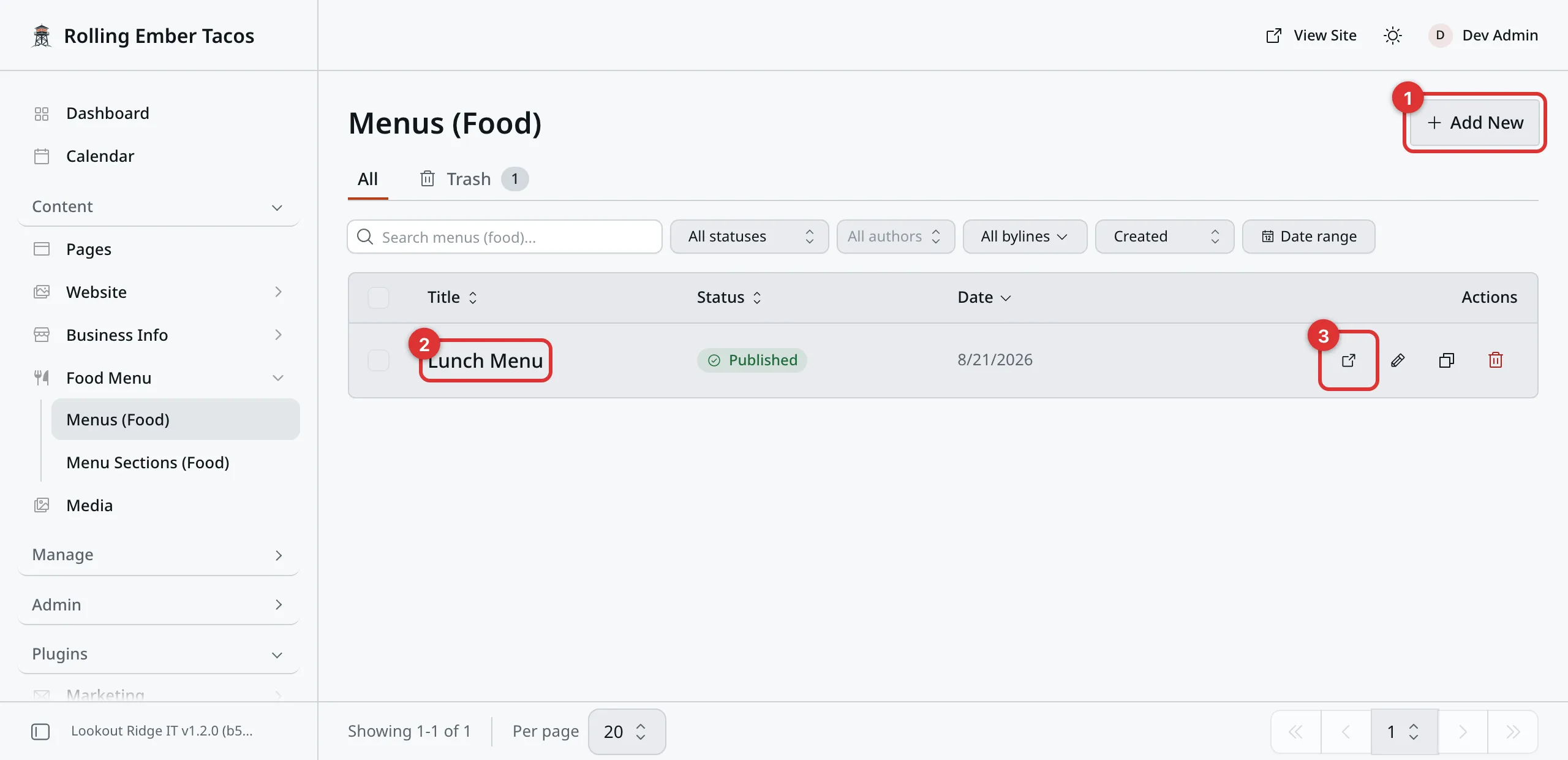
Most food trucks need one menu. Some have two or three.
1. Add New. Starts a new menu.
2. The title. Click it to open the menu and edit it.
3. The view icon. Opens your menu page on your live website.
How a menu and its sections fit together
A menu is the cover. The sections are the pages inside it.
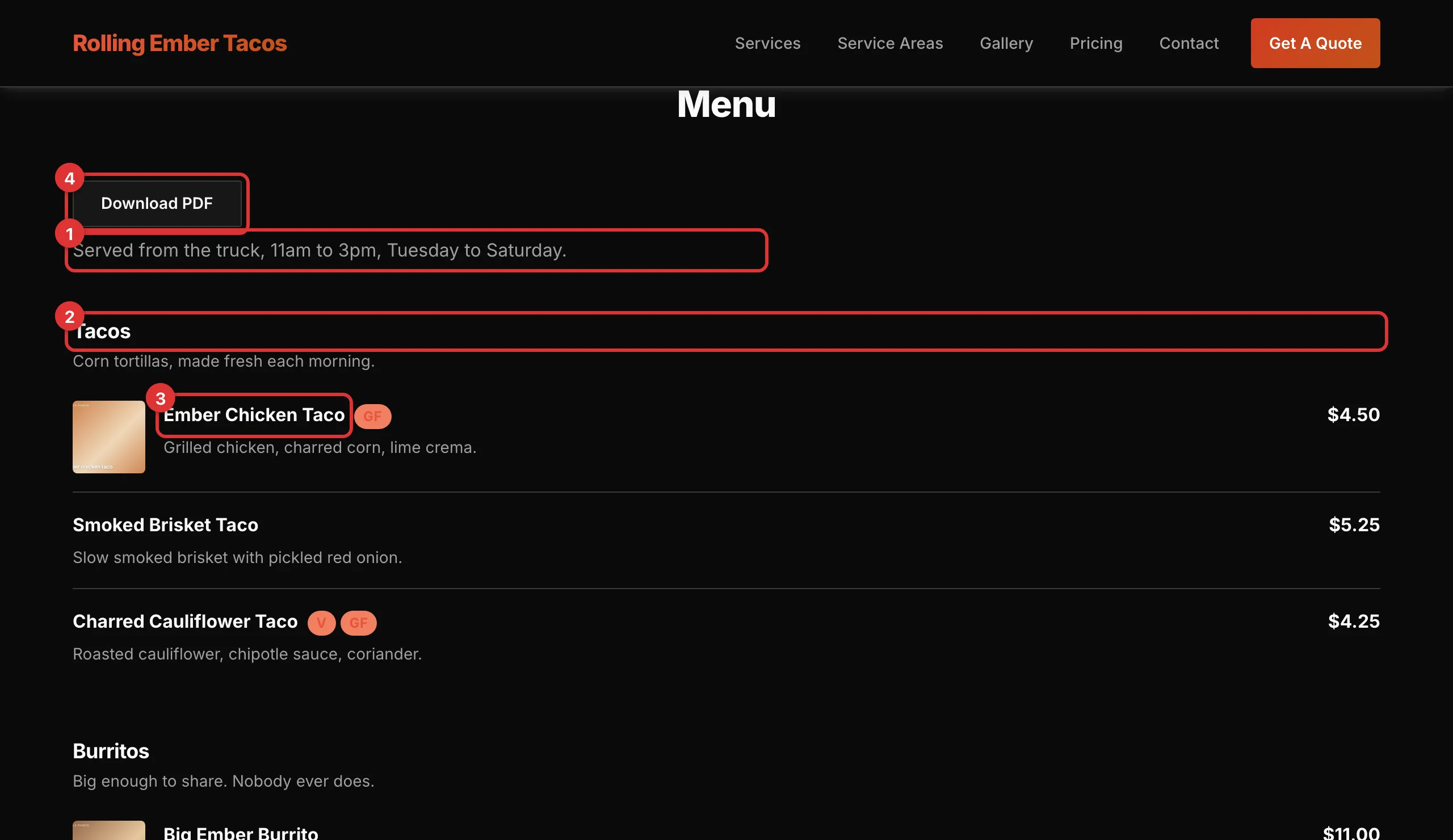
One menu, its sections, and the dishes inside them.
1. The intro. Typed on the menu.
2. A heading. One Menu Section entry.
3. A dish. One row in that section’s list of items.
4. Download PDF. Covered further down this page.
So which section belongs to which menu?
- If you have one menu, every section belongs to it. Leave the Menu box on each section empty.
- If you have two or more, each section names its menu in that box.
- A section with an empty Menu box joins the first menu on the list.
Menu Sections (Food) walks through that box.
Making a menu
- Click Add New.
- Type a Menu title, such as “Lunch Menu”.
- Write an Intro if you want one.
- Click Save.
- Click Publish now, then Publish now again to confirm.
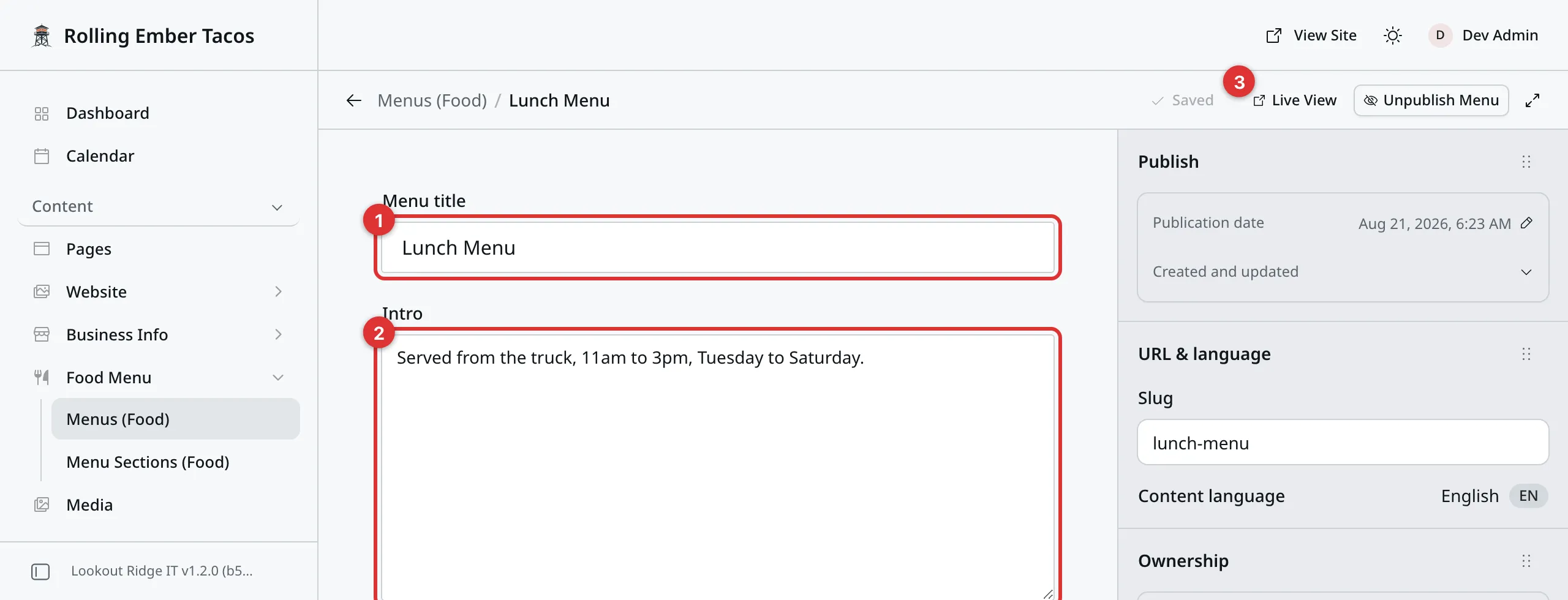
A menu has four boxes. None of them is for food.
1. Menu title. What you call this menu. On a site with one menu, it is never shown to the public. It is a name for you.
2. Intro. A line or two under the heading, such as your serving hours. Leave it empty and nothing shows there.
3. Live View. Opens your menu page in a new tab. A menu has no page of its own, so this always opens the one menu page.
Two more boxes sit further down the form.
Printable PDF is for a menu file you already have. It is covered below. Leave it empty and your website makes one for you.
Sort order sets which menu comes first, and only matters if you have two or more. The lowest number goes first, and an empty box counts as zero. Two menus with the same number fall back to A to Z by title.
Important
A new menu shows nothing on your website on its own. It needs a published section with at least one dish in it. Until then, visitors do not see the menu at all. Menu Sections (Food) shows you how to add one.
Warning
The Slug is part of a web address, and it is used to tie a section to this menu. Set it once, while the menu is new, then leave it alone. Saving and publishing has the full warning.
Where your menu shows up
Your website has one menu page, at yoursite.com/menu. Every menu you
publish is on it, one under the other.
With one menu, that page is headed Menu and your menu title is not shown. Your sections start right away.
With two or more, each menu gets its own heading. A row of buttons at the top of the page jumps to each one.
Nothing links to this page out of the box. To add a link in the bar at the
top of your website, add a link to /menu under Plugins, then Site
Layout, then Navigation. See Menus.
Menu paper
Your menu page can sit on a printed look, the way a paper menu does. It is one setting, and it changes the whole page.
Go to Admin, then Plugins. Find the row named menu and click the gear
at the end of it. There is one box, Menu paper.
| Option | What you get |
|---|---|
| None | The plain page background. Nothing extra. |
| Card stock | A raised sheet with a soft grain in it. |
| Linen weave | A woven band. No shadow under it. |
| Deckled sheet | Warm card with a torn edge. |
| Aged stock | Cream board with spots and shading, like an old menu. |
Pick one and click Save Settings. Then open your menu page again. The look shows on the next page load.
This is only for your menu page. The short menu on your home page is a teaser, so it stays a plain part of the page.
The Download PDF button
Every menu on the page has one. It hands a visitor a printable copy: your business name, the headings, the dishes and the prices. No photos, no colors.
You do not have to make that file. Your website builds it from what you have typed.
The one it builds is letter size, so it prints on normal paper. It is words only. No photos, and none of the paper looks above. It is a plain copy people can print, not a picture of your menu page.
If you already have a menu file of your own, open the menu and upload it in the Printable PDF box. The button then hands out your file instead. Only a PDF file can go here.
Tip
Small picture symbols, such as a chili pepper, show on the web page but not on the printable copy. The printable copy leaves them out and keeps the rest of the name, so “Hot wings” with a pepper prints as plain “Hot wings”.
Putting your menu on another page
A Menu block puts a short version of your menu on any page. It lists dish names and prices, then a button through to the full menu page. The home page is the usual spot for it.
Pages shows how a block is added and changed.
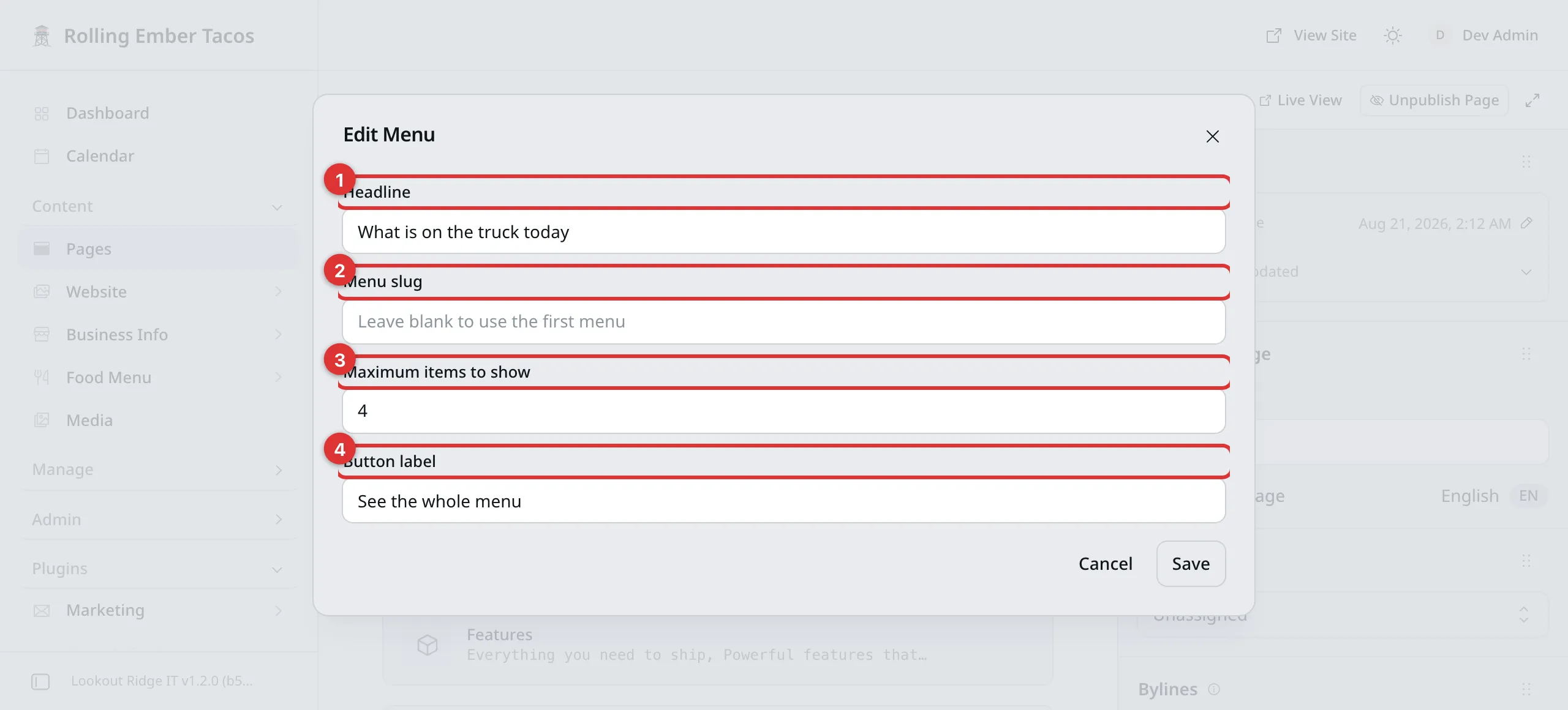
The block has its own form. All four boxes can be left empty.
1. Headline. The heading above the list, such as “What is on the truck today”. Leave it empty and no heading shows.
2. Menu slug. Which menu to use. Leave it empty and your first menu is used, which is what most sites want. A menu’s slug is in the Settings panel on the right when you have that menu open.
3. Maximum items to show. A number, such as 4. Leave it empty and six dishes show.
4. Button label. The words on the button under the list. Leave it empty and it reads See the full menu.
The block takes dishes from the top of the menu down, section by section. It shows no headings and no photos. For all of that, a visitor clicks through.
Changing a price
Prices sit on the dish, not on the menu. Open the section that holds the dish, change its Price, and publish. Menu Sections (Food) covers it.
Taking a menu off your website
Warning
Both of the buttons below take the menu off your website the moment you click. Its sections and dishes go with it.
If this is your only menu, your menu page then has no food on it at all. Visitors see a short setup message where your dishes used to be. Check that another published menu is in place first.
Unpublish Menu hides it and keeps it. Use it for a menu you are resting, such as a summer one in winter. The entry waits exactly as you left it, and publishing brings it back.
Move to Trash is for a menu you are done with. It goes to the Trash tab, so you can still get it back.
Saving and publishing covers both buttons and how to undo them.
Last updated Oct 20, 2026